Shutter Encoder is the best all-round LosslessCut alternative if you want fast cuts, clean stream copying, and fewer weird codec surprises. The big idea is simple: if a tool can use stream copy, it can cut video without decoding and encoding the whole file again, which FFmpeg describes as copying packets directly without filtering or recompression [source: FFmpeg]. That saves time, keeps quality intact, and avoids turning a quick trim into a fan-noise marathon.
TLDR: Use Shutter Encoder for the best mix of speed and control, Avidemux for simple desktop trimming, and FFmpeg if you are comfortable with commands. For example, trimming a 4 GB 4K clip with stream copy can take under 30 seconds on a modern SSD, while re-encoding may take several minutes. If you only need to cut webinar starts, security footage, or long gameplay recordings, these tools can save hours each month. The only gotcha: perfect frame cuts usually need re-encoding, unless the cut lands on a keyframe.
1. Shutter Encoder
Best for: creators who want a friendly app built around FFmpeg.
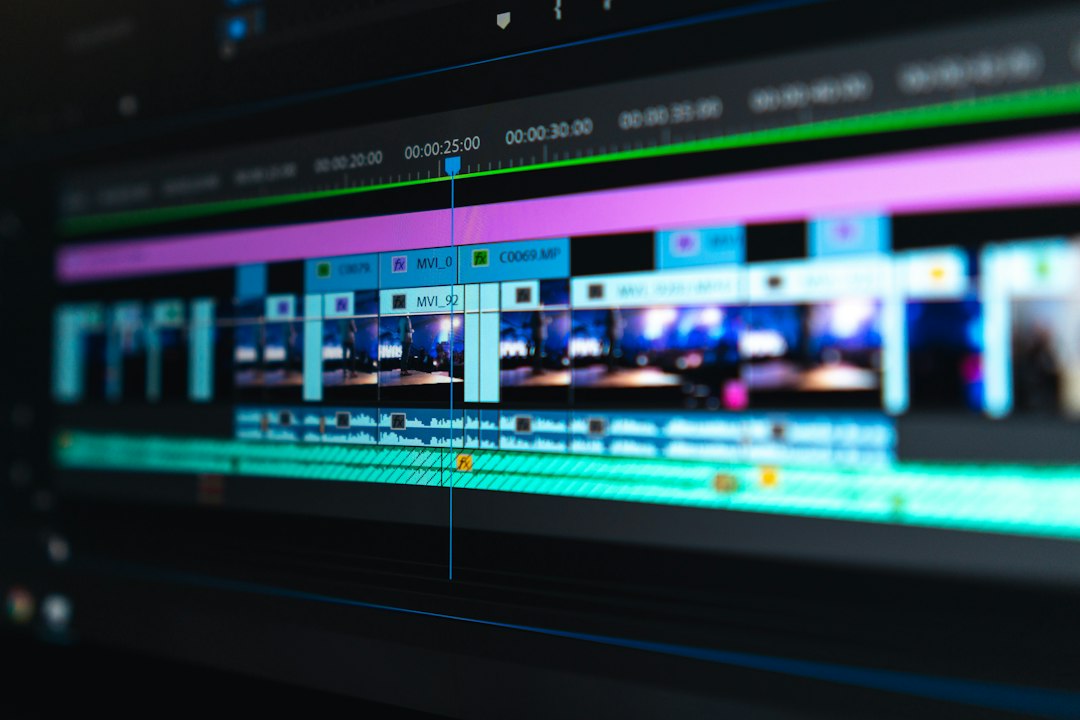
Shutter Encoder feels like the tool people wish LosslessCut had been from day one. It supports trimming, rewrapping, stream copy, and batch jobs. The interface is not flashy, but it is practical. Pick your file, set in and out points, choose a function such as Cut without re-encoding, and run it.
The catch is that some settings are tucked away in panels. Expect a few minutes of poking around before it clicks. After that, it is fast and reliable.
2. Avidemux
Best for: quick cuts on common formats like MP4, MKV, and AVI.
Avidemux is old-school in a good way. Set Video Output to Copy, set Audio Output to Copy, choose your container, then mark the start and end. Done.
It is especially useful for removing ads, trimming camera clips, or cutting long screen recordings. The annoyance? Keyframe rules can bite you. If your start point is not on a keyframe, Avidemux may shift the cut or ask you to use another mode. That is normal for lossless editing, but still irritating when you are trying to shave off three seconds.
3. FFmpeg
Best for: speed, scripts, servers, and people who do not mind a terminal.
FFmpeg is not a classic editor, but it is the engine behind many of them. For pure speed, it is hard to beat. A basic trim looks like this:
ffmpeg -ss 00:01:20 -i input.mp4 -to 00:03:10 -c copy output.mp4
This copies the original video and audio streams into a new file. No full re-encode. No quality loss. It is great for batch cutting 50 lecture videos or chopping surveillance clips by time range.
Honestly, it feels like FFmpeg punishes you for one typo. But once you save a few commands, it becomes ridiculously efficient.
4. Bandicut
Best for: Windows users who want a simple paid tool.
Bandicut is built for cutting. Its High-Speed Mode keeps the original quality by avoiding full re-encoding when the format allows it. You can split one video into several parts, remove the middle, or join clips with matching settings.
The interface is cleaner than many free tools. That matters if you trim videos every day and hate hunting through menus. The free version adds limits, so this makes the most sense if fast cutting is part of your work.
5. SolveigMM Video Splitter
Best for: frame-accurate commercial cutting with smart rendering.
SolveigMM Video Splitter is made for precise trimming. It can cut many formats without re-encoding most of the file. When needed, it may re-encode only small parts near the cut points. That method is often called smart rendering.
This is useful when keyframe-only cuts feel too rough. Say you need to remove a single spoken mistake from an interview. A strict stream-copy tool may cut a little early or late. SolveigMM gives you more control while still avoiding a full quality hit.
6. MKVToolNix
Best for: splitting and segmenting MKV files without quality loss.
MKVToolNix is not a normal video editor. Still, it deserves a spot because it is excellent for MKV work. You can split files by time, size, chapters, or segments. It copies streams into a new MKV container instead of re-encoding them. Its own documentation covers many split and output controls [source: MKVToolNix].
Use it when you need to break a three-hour recording into chapters or extract a section from a large archive. Do not expect a comfy visual timeline. This is more of a precision utility.
How to choose the right one
- Pick Shutter Encoder if you want the best free balance of power and usability.
- Pick Avidemux if you need simple cuts and hate clutter.
- Pick FFmpeg if you cut many files and want automation.
- Pick Bandicut if you use Windows and want a polished cutter.
- Pick SolveigMM if frame accuracy matters more than being free.
- Pick MKVToolNix if your files are MKV and you need splitting, not fancy editing.
One last quality tip
Lossless cutting is fastest when you cut on keyframes. If you need an exact frame, some re-encoding may happen near the cut. That is not a failure. It is how video compression works. For quick trims, stream copy is brilliant. For surgical edits, use smart rendering or accept a small re-encode around the edit point.