Fix charging first by testing the charger, cable, wall outlet, charging port, and forced restart before assuming the phone is dead. Most “won’t charge” cases are caused by lint, a bad cable, heat, moisture warnings, or a frozen charging system. Apple says an iPhone may pause charging at around 80% if it gets too warm or if battery features are managing charging behavior [source: Apple].
TLDR: Start with the simple stuff: try another outlet, another cable, and a known good charger. Then clean the port gently, restart the phone, and check for heat, moisture, or battery health warnings. For example, if your Android shows 0% for 10 minutes but turns on after a forced restart, the issue may be software rather than the battery. In many repair counters, charging problems often come down to accessories or dirty ports, not the phone itself.
First: Rule Out the Obvious Stuff
It sounds basic. It also saves money. Before you blame the battery, motherboard, or charging IC, do these checks:
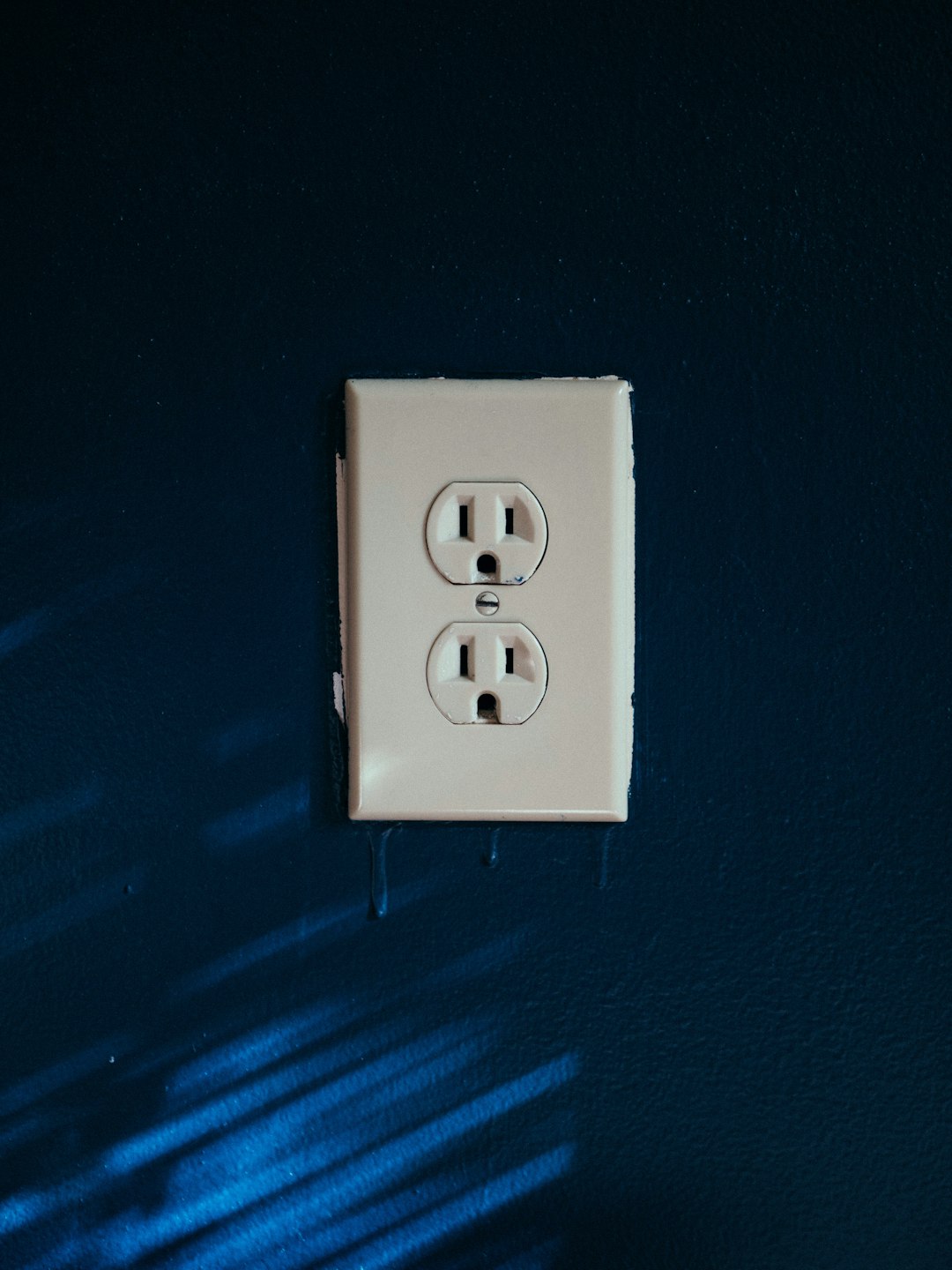
- Try a different wall outlet. Plug in a lamp or another device to confirm it works.
- Swap the cable. Charging cables fail quietly. They may still look fine.
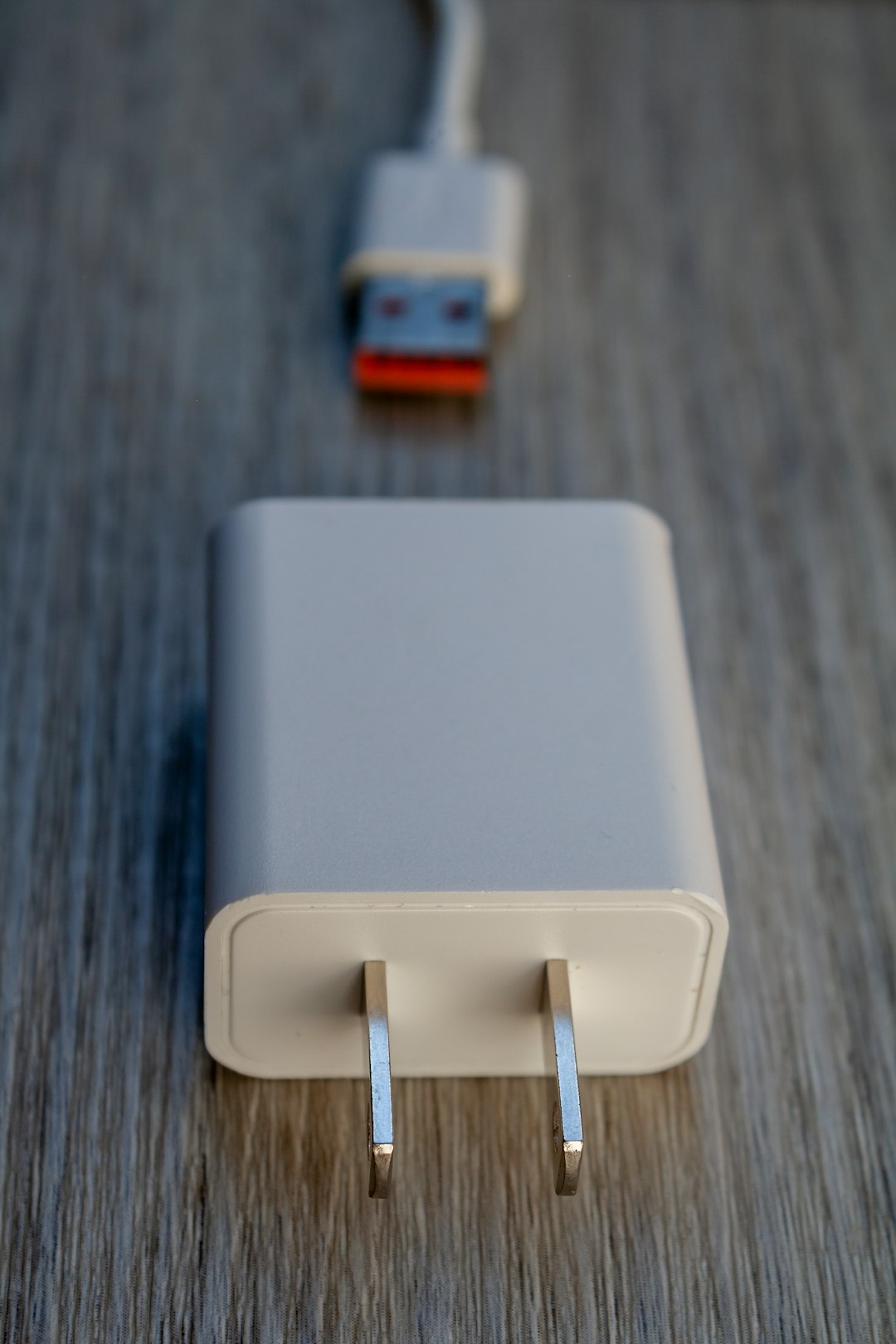
- Use another power adapter. A weak adapter can make the phone appear dead.
- Remove cases and magnetic accessories. Thick cases can block wireless charging or trap heat.
- Wait 10 to 20 minutes. A deeply drained phone may need time before the screen wakes.
Honestly, it feels silly to wait beside a black screen for 15 minutes. But a fully drained lithium-ion battery can behave like nothing is happening at first. If the phone finally shows a battery icon, let it charge without touching it.
Clean the Charging Port, But Don’t Attack It
A clogged port is one of the most common reasons a phone will not charge. Pocket lint gets packed into the port each time you plug in the cable. After a while, the connector cannot seat fully.
Use a flashlight. Look inside the port. If you see dust or lint, clean it carefully:
- Power the phone off.
- Use a wooden toothpick or plastic pick.
- Do not use metal tools.
- Do not spray liquid cleaner into the port.
- Do not scrape hard against the contact pins.
After cleaning, plug the cable in again. The connector should feel firm. If it wiggles badly or only charges at one angle, the cable or port may be damaged.
Android Troubleshooting: What to Check
Android phones vary a lot. Samsung, Google Pixel, OnePlus, Motorola, and Xiaomi all handle charging a little differently. Still, the core checks are similar.
1. Force Restart the Phone
If an Android phone will not respond, hold the Power button for 20 to 30 seconds. On many Samsung phones, hold Power + Volume Down for about 10 to 20 seconds. If the phone vibrates or the logo appears, keep it plugged in.
A frozen Android can look completely dead. The screen stays black. The charging icon never appears. A force restart can wake the charging system.
2. Check for Moisture or Temperature Warnings
Many Android phones block charging when they detect moisture in the USB port. Samsung devices are famous for showing a moisture warning that refuses to go away. It drives me crazy that one tiny drop can turn a normal charge into a 30-minute guessing game.
If you see a moisture alert:
- Unplug the cable right away.
- Dry the phone with a soft cloth.
- Leave the port open to air.
- Avoid rice. It leaves dust and starch behind.
- Try wireless charging if your phone supports it.
Heat also stops charging. If the phone is hot, unplug it, remove the case, and place it somewhere cool and dry. Do not put it in a freezer.
3. Boot Into Safe Mode
If the phone charges only sometimes, a bad app may be causing trouble. Safe Mode loads Android without most third-party apps. On many Android phones, hold the power button, press and hold Power off, then tap Safe Mode.
If charging works in Safe Mode, remove recently installed battery apps, cleaners, launchers, or sketchy charging boosters. Those “boosters” rarely help. Some make things worse.
4. Check Battery Health and System Updates
Pixel users can review battery settings and charging behavior in Android settings, and Google offers steps for phones that will not turn on or charge [source: Google]. Samsung users should check Settings > Battery and the Samsung Members diagnostics tool.
Install pending system updates if the phone can turn on. A bug in charging control or battery reporting can make the percentage freeze or drop oddly.
iPhone Troubleshooting: What to Check
iPhones have fewer hardware variations, which makes troubleshooting cleaner. The main issues are usually Lightning or USB-C port debris, a bad cable, software freeze, optimized charging, heat, or battery wear.
1. Force Restart the iPhone
For most modern iPhones with Face ID:
- Press and quickly release Volume Up.
- Press and quickly release Volume Down.
- Hold the Side button until the Apple logo appears.
For older models, the button combo differs. A force restart is worth trying even if the screen is black. It does not erase your data.
2. Inspect the Lightning or USB-C Port
Lightning ports collect lint easily. USB-C ports do too, though the shape is different. If the cable does not click in firmly, check for packed debris. Clean gently with a non-metal tool.
If your iPhone says “Liquid Detected”, unplug it. Let it dry. Apple does not recommend using heat, compressed air, or foreign objects to dry the connector. Wireless charging can be useful while you wait, if your model supports it.
3. Understand Optimized Battery Charging
An iPhone may stop near 80% on purpose. This can happen because of heat or Optimized Battery Charging. The feature learns your charging routine and delays finishing the charge to reduce battery aging.
If you need a full charge sooner, check Settings > Battery > Battery Health & Charging. You can adjust charging optimization there on supported versions of iOS.
4. Check Battery Health
Go to Settings > Battery > Battery Health & Charging. If maximum capacity is low or iOS says service is recommended, the battery may no longer hold charge well. A worn battery can shut down even when the screen shows charge remaining.
Android vs iPhone: Key Differences
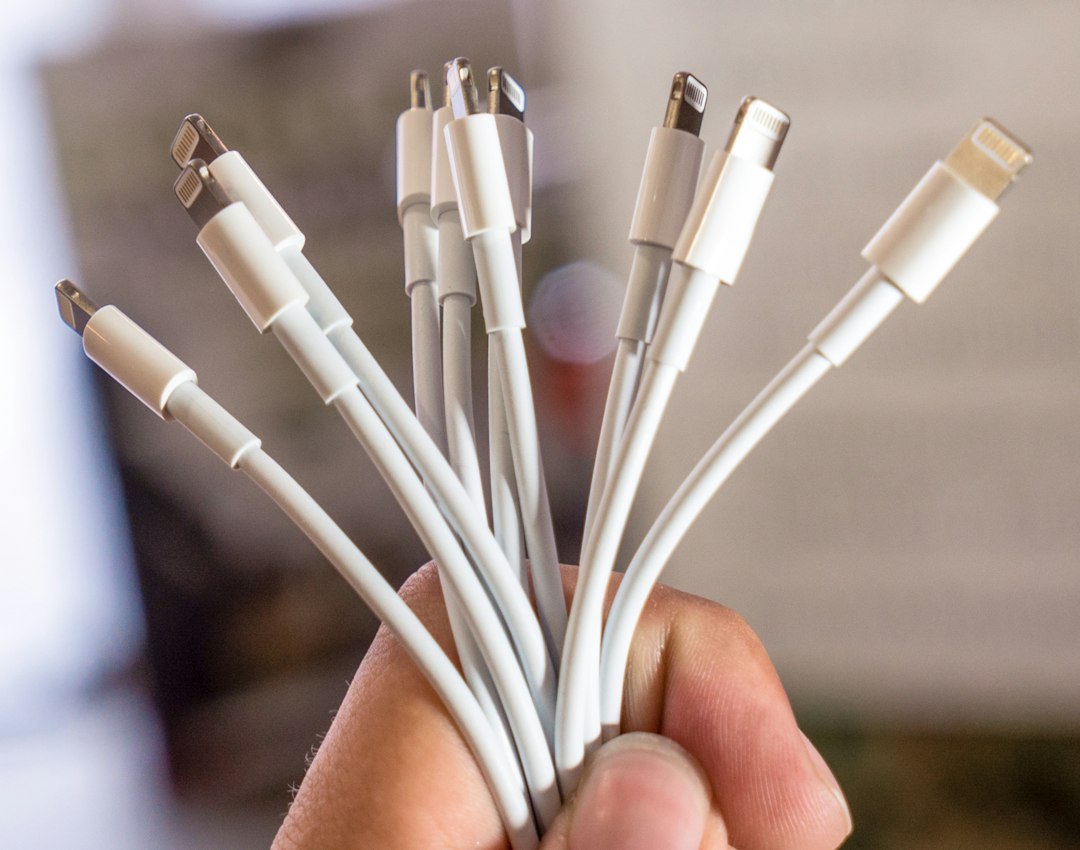
- Charging ports: Many Android phones use USB-C. Older iPhones use Lightning. Newer iPhones use USB-C.
- Moisture alerts: Android alerts can be more persistent. iPhones often show clear liquid detection warnings.
- Safe Mode: Android has a built-in Safe Mode for app testing. iPhone does not use the same feature.
- Battery tools: iPhone battery health is easier to find. Android tools vary by brand.
- Wireless charging: Many premium Android phones and recent iPhones support it, but budget models may not.
When It Is Probably Hardware
Get help from a repair shop or official service center if:
- The phone charges only when the cable is bent.
- The port feels loose or damaged.
- The phone gets hot while plugged in.
- The battery swells or pushes the screen up.
- Multiple known good chargers fail.
- The phone was dropped or exposed to water.
Stop using the phone if the battery is swollen. Do not press the screen down. Do not puncture the battery. That is a safety issue, not a normal charging glitch.
A Smart Troubleshooting Order
- Try another outlet.
- Try another cable and adapter.
- Let it charge for 20 minutes.
- Force restart the phone.
- Inspect and clean the port.
- Check for heat or moisture warnings.
- Try wireless charging, if available.
- Check battery health and updates.
- Use Android Safe Mode if apps may be involved.
- Seek repair if hardware signs appear.
A phone that will not charge is annoying, but the fix is often simple. Start with power, cable, port, and restart. Then move to software, battery health, and brand-specific settings. If every basic test fails, do not keep forcing it. At that point, the phone is telling you it needs a real repair, not another charger from the drawer.