Resetting your WordPress site can feel like hitting a big red button—one that might wipe out months or even years of hard work if handled incorrectly. Whether you’re cleaning up after a failed redesign, removing test data, or preparing a site for a new client, a proper reset can save time and reduce frustration. The key is knowing how to reset strategically without sacrificing control over your content, users, and core configuration.
TLDR: Resetting your WordPress site doesn’t have to mean losing your data or control. Always start with a full backup, understand what type of reset you actually need, and use reliable tools or manual processes carefully. Test in staging whenever possible. With the right steps, you can safely wipe unwanted content while keeping essential files, settings, and access intact.
Why You Might Need to Reset Your WordPress Site
There are several legitimate reasons for resetting a WordPress website. Not all resets are dramatic—they range from clearing demo content to fully restoring a clean installation.
- Starting over after experimentation – You tested multiple themes and plugins and now want a clean slate.
- Preparing a site for client delivery – Removing placeholder content and restoring structured data.
- Fixing a broken development site – Too many changes created instability.
- Security recovery – Cleaning up after malware or unauthorized changes.
- Redesign or rebrand – Keeping structure but removing content.
Understanding your specific goal determines the safest reset approach.
Step 1: Always Back Up First
Before you reset anything, back up both your database and your files.
This includes:
- The entire WordPress database
- Your
wp-contentfolder (themes, plugins, uploads) - Your
wp-config.phpfile - Custom code or child themes
You can create backups using:
- Your hosting provider’s backup system
- phpMyAdmin for database exports
- Backup plugins like UpdraftPlus or Duplicator
- Manual FTP downloads
Pro tip: Store backups off-site (cloud storage or external drive). If something goes wrong during the reset, you’ll maintain full recovery control.
Step 2: Decide What Type of Reset You Need
Not all resets are equal. There are three common levels:
1. Content Reset
Removes posts, pages, media, and comments but keeps themes, plugins, and configurations.
2. Database Reset
Wipes all WordPress database tables and restores them to default installation status.
3. Full Reinstallation
Completely deletes WordPress core files and database, then reinstalls fresh.
Choosing the wrong type can accidentally remove important configuration settings.
Step 3: Use a Staging Environment When Possible
If your site is live, avoid resetting directly in production.
A staging environment allows you to:
- Test the reset process
- Verify backups
- Confirm plugin compatibility
- Prevent downtime
Many hosting providers offer one-click staging. If not, you can clone your site using backup plugins.
Step 4: Resetting with a Plugin (Safest for Most Users)
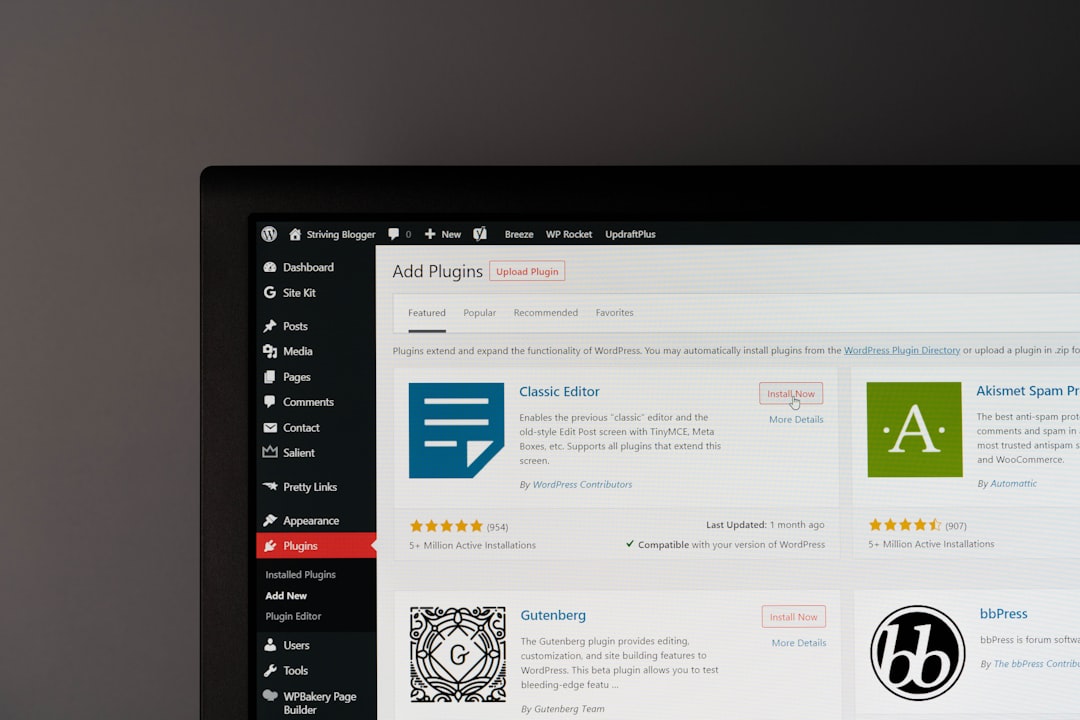
For most website owners, using a plugin is the safest and fastest approach.
Popular WordPress Reset Plugins
| Plugin | Best For | Reset Type | Ease of Use | Control Level |
|---|---|---|---|---|
| WP Reset | Developers and testers | Full or partial reset | Very Easy | High |
| Advanced WordPress Reset | Quick database wipe | Database only | Easy | Medium |
| WP Database Reset | Selective table reset | Table specific | Moderate | High |
How to Reset Using WP Reset (Example)
- Install and activate the plugin.
- Navigate to Tools → WP Reset.
- Read the warnings carefully.
- Type the confirmation phrase.
- Click Reset Site.
The plugin will:
- Delete all content
- Restore default database tables
- Keep your administrator account active
Important: Most reset plugins retain your current admin user and password. This prevents you from being locked out.
Step 5: Manual Database Reset (Advanced Users)
If you prefer full control, you can manually reset via phpMyAdmin.
This method requires technical confidence.
Manual Reset Process
- Log in to your hosting account.
- Open phpMyAdmin.
- Select your WordPress database.
- Drop all tables.
- Re-run the WordPress installation script.
Warning: Dropping the wrong database can permanently destroy unrelated websites. Double-check database names before proceeding.
Step 6: Protect Critical Files During Reset
Even during a full reset, some files should remain untouched unless absolutely necessary:
- wp-config.php – Contains database connection and security keys.
- .htaccess – Manages permalinks and redirects.
- Custom uploads – If you want to preserve media.
- Premium theme licenses – Some require reactivation.
Deleting these files can cause:
- Broken site loading
- Loss of custom configurations
- SEO damage
- Security key regeneration issues
Step 7: Reset Without Losing Admin Access
The biggest fear during any reset is losing login access. To prevent this:
- Verify your administrator email is correct.
- Create a secondary admin account before resetting.
- Disable caching plugins temporarily.
- Log your database credentials securely.
Most reset plugins keep existing admin users unless you explicitly remove them. If performing a full manual reinstall, ensure you recreate your admin account immediately.
Common Mistakes to Avoid
1. Skipping the Backup
This is the most common and costly mistake.
2. Resetting the Wrong Environment
Accidentally resetting your live site instead of staging can cause downtime and lost business.
3. Forgetting SEO Settings
SEO plugins, permalinks, and meta settings may need reconfiguration.
4. Ignoring Security Reconfiguration
After reset:
- Regenerate security keys
- Reinstall security plugins
- Change admin passwords
Post-Reset Checklist
Once the reset is complete, take these steps to regain full operational control:
- Reinstall essential plugins only
- Select and configure your theme
- Adjust permalink settings
- Reconfigure email settings
- Reconnect analytics tools
- Test forms and checkout pages
Think of a reset as moving into a newly renovated home. The structure is ready—but it still needs furnishing.
When You Should Not Reset
Resetting isn’t always the correct solution.
Avoid resetting if:
- You only need minor troubleshooting
- The issue is theme-specific
- A plugin conflict can be isolated
- You haven’t diagnosed the core problem
Sometimes deactivating a few plugins or restoring a backup is more efficient than starting fresh.
Maintaining Control Long-Term
To prevent future reset headaches:
- Use a staging workflow for testing
- Limit unnecessary plugin installations
- Maintain structured backups
- Document configuration settings
- Keep WordPress updated regularly
Professional developers often treat their WordPress setup like version-controlled software. Even simple documentation can dramatically reduce recovery time later.
Final Thoughts
Resetting your WordPress site doesn’t have to feel risky or chaotic. With thoughtful preparation, proper backups, and the right tools, you stay firmly in control throughout the process. The secret is understanding what kind of reset you truly need—and resisting the urge to rush.
Whether you’re cleaning up a development environment or preparing for a complete redesign, a safe reset is less about deletion and more about strategy. Approach the process methodically, protect your access credentials, and always have a recovery path.
When done correctly, a WordPress reset isn’t destructive—it’s transformative. It gives you the opportunity to rebuild smarter, cleaner, and more efficiently than before.