
Installing Linux on a Microsoft Surface Book 2 can give the device a faster, more customizable, and developer-friendly operating system. Because the Surface Book 2 uses specialized Microsoft hardware, the installation process requires more preparation than a typical laptop. With the right Linux distribution, firmware settings, and post-install tweaks, the Surface Book 2 can become a very capable Linux machine.
TLDR: The safest way to install Linux on a Surface Book 2 is to back up Windows, create a bootable Linux USB drive, disable Secure Boot if needed, and install Linux alongside or instead of Windows. Ubuntu, Fedora, and Linux Mint are common choices, but the Surface Linux kernel is recommended for better hardware support. After installation, users should update the system, install Surface-specific packages, and test Wi-Fi, touch, keyboard, suspend, and battery behavior.
Before Starting: What Should Be Known
The Surface Book 2 is not a standard laptop. It includes a detachable display, touchscreen, Surface Pen support, NVIDIA graphics on some models, and Microsoft-specific firmware. Linux can run well on it, but some features may require additional drivers or kernel patches.
In most cases, the user should expect the following:
- Wi-Fi and Bluetooth usually work after updates, but may require firmware packages.
- Touchscreen and pen support can work better with the Surface Linux kernel.
- Battery life may vary depending on the distribution and power settings.
- Detaching the tablet portion may not behave exactly as it does in Windows.
- NVIDIA graphics models may need additional configuration.
For users who rely on Windows-only software, a dual-boot setup is usually the best option. For users who want a dedicated Linux device, replacing Windows entirely is also possible.
Step 1: Choose the Right Linux Distribution
The first step is selecting a Linux distribution. For the Surface Book 2, beginner-friendly distributions are usually recommended because they provide reliable installers, broad hardware support, and large communities.
Good options include:
- Ubuntu: A popular choice with strong hardware support and documentation.
- Fedora: A modern distribution with newer kernels and software packages.
- Linux Mint: A friendly option for users coming from Windows.
- Pop!_OS: Useful for systems with NVIDIA graphics, though Surface-specific tweaks may still be needed.
Ubuntu or Fedora is often the easiest recommendation for the Surface Book 2. Ubuntu is especially suitable for users who want a large support community, while Fedora may appeal to users who prefer newer software.

Step 2: Back Up Important Data
Before changing partitions or installing another operating system, the user should back up all important files. Installing Linux can involve resizing or deleting partitions, and mistakes can cause data loss.
A proper backup should include:
- Documents, photos, videos, and downloads
- Browser bookmarks and saved passwords
- Work files and project folders
- Windows recovery keys or BitLocker recovery information
- Any software license keys that may be needed later
If the Surface Book 2 uses BitLocker, the recovery key should be saved before changing firmware or boot settings. It can usually be found in the user’s Microsoft account under device recovery keys.
Step 3: Create a Windows Recovery Drive
Even if Linux will replace Windows, it is wise to create a Windows recovery drive first. This allows the user to restore the Surface Book 2 if the Linux installation fails or if Windows is needed later.
To create a recovery drive in Windows:
- Connect a USB drive with sufficient storage.
- Search for Recovery Drive in the Windows Start menu.
- Open the tool and select the option to back up system files if available.
- Follow the instructions to create the recovery USB.
- Store the recovery drive somewhere safe.
This step is optional, but strongly recommended. Surface devices can be more complicated to restore without official recovery media.
Step 4: Download the Linux ISO File
Next, the user should download the Linux ISO file from the official website of the chosen distribution. It is important to use the official source to avoid corrupted or unsafe images.
For example, if Ubuntu is selected, the user should download the latest Ubuntu Desktop LTS version. LTS releases are supported for several years and are generally more stable than short-term releases.
After downloading the ISO, it is a good idea to verify the checksum if the distribution provides one. This confirms that the ISO file was downloaded correctly.
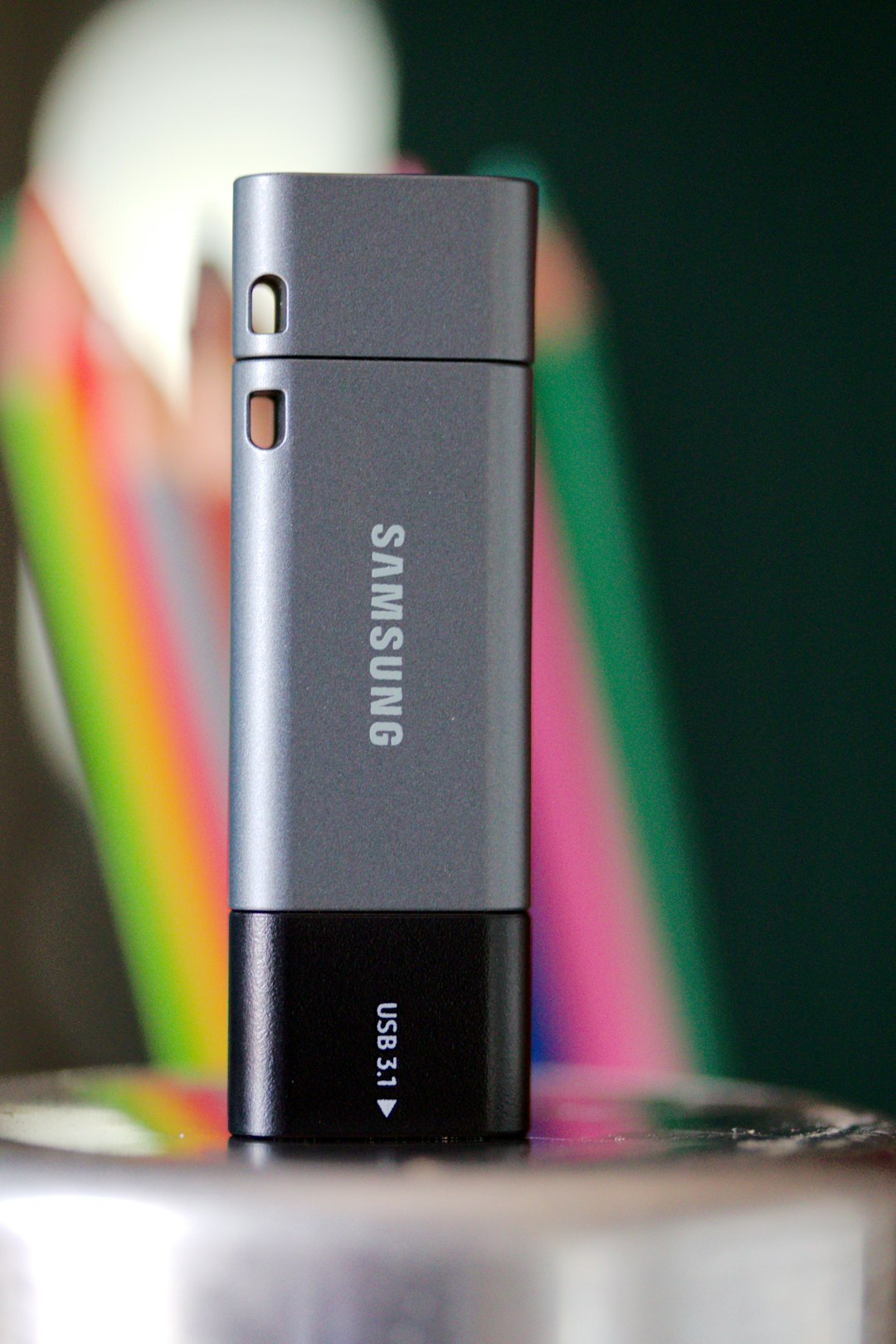
Step 5: Create a Bootable Linux USB Drive
A bootable USB drive is required to start the Linux installer. On Windows, tools such as Rufus or balenaEtcher can write the ISO file to a USB drive.
To create the USB drive with Rufus:
- Insert a USB drive with at least 8 GB of space.
- Open Rufus.
- Select the downloaded Linux ISO file.
- Choose GPT as the partition scheme if prompted.
- Choose UEFI as the target system.
- Click Start and wait for the process to finish.
The USB drive will be erased during this process, so it should not contain any important files.
Step 6: Prepare Windows for Dual Boot
If the user wants to keep Windows and install Linux beside it, space must be created on the internal drive. This is done by shrinking the Windows partition.
To shrink the Windows partition:
- Right-click the Start button and open Disk Management.
- Find the main Windows partition, usually labeled C:.
- Right-click it and choose Shrink Volume.
- Enter the amount of space to free for Linux.
- Leave the new space unallocated.
A minimum of 40 GB is recommended for Linux, but 80 GB or more is better if the user plans to install many applications or store files.
The user should also disable Fast Startup in Windows. Fast Startup can leave Windows partitions in a locked state, which may cause problems when Linux tries to access them.
To disable Fast Startup:
- Open Control Panel.
- Go to Power Options.
- Select Choose what the power buttons do.
- Click Change settings that are currently unavailable.
- Uncheck Turn on fast startup.
- Save the changes.
Step 7: Enter Surface UEFI Settings
The Surface Book 2 uses UEFI firmware. To boot from the Linux USB drive, the user may need to adjust firmware settings.
To enter Surface UEFI:
- Shut down the Surface Book 2 completely.
- Hold the Volume Up button.
- While holding Volume Up, press and release the Power button.
- Keep holding Volume Up until the UEFI screen appears.
In UEFI settings, the user should check the boot configuration. If the Linux USB does not boot, Secure Boot may need to be disabled or changed. Some distributions support Secure Boot, but Surface hardware can still be picky.
If Secure Boot is disabled, the device may show a red warning screen at startup. This is normal on Surface devices and only indicates that Secure Boot is off.
Step 8: Boot from the Linux USB Drive
Once the bootable USB is inserted, the Surface Book 2 can boot from it.
To boot from USB:
- Shut down the device.
- Insert the Linux USB drive.
- Hold the Volume Down button.
- Press and release the Power button.
- Keep holding Volume Down until the Linux boot menu appears.
The user should then select the option to try or install Linux. Many distributions provide a live environment, which allows the user to test Wi-Fi, touch input, keyboard, trackpad, and display scaling before installing.
Step 9: Start the Linux Installer
Inside the live environment, the user should launch the installer. Most installers ask for language, keyboard layout, network connection, and installation type.
For a dual-boot setup, the safest option is usually something like Install alongside Windows Boot Manager, if available. If this option does not appear, the user may need to choose manual partitioning.
For a full Linux installation that removes Windows, the user can select Erase disk and install Linux. This will delete Windows and all files on the internal drive, so it should only be chosen after backups are complete.
Step 10: Partition the Drive
If manual partitioning is required, the user should carefully assign partitions. A typical Linux installation uses:
- EFI System Partition: Already exists on Windows systems and should usually be mounted at /boot/efi without formatting.
- Root partition: Mounted at /, formatted as ext4, and used for the Linux system.
- Swap: Optional, but useful for hibernation or memory overflow.
- Home partition: Optional separate partition mounted at /home for personal files.
For most users, a simple root partition is enough. If the installer handles partitions automatically, that is usually safer than manual configuration.
Step 11: Complete Installation and Reboot
After choosing the installation type and confirming the changes, the installer will copy files to the internal drive. The user may be asked to create a username, password, time zone, and computer name.
When installation finishes, the user should reboot and remove the USB drive when prompted. The Surface Book 2 should then show a boot menu, usually GRUB, where Linux and Windows can be selected.
If the device boots straight into Windows, the boot order may need to be changed in Surface UEFI. The Linux boot entry should be moved above Windows Boot Manager.
Step 12: Update Linux After Installation
After the first successful boot into Linux, the system should be updated immediately. Updates often improve hardware support and fix installation bugs.
On Ubuntu-based systems, the user can open a terminal and run:
sudo apt update
sudo apt upgrade
On Fedora, the command is:
sudo dnf upgradeAfter updates are installed, the user should reboot again. This ensures the newest kernel and drivers are active.
Step 13: Install the Surface Linux Kernel
For better Surface Book 2 hardware support, many users install the Surface Linux kernel. This community-maintained kernel includes patches for Surface-specific devices, including touchscreens, cameras, sensors, and power management.
The exact installation steps depend on the distribution, so the user should follow the current instructions from the official Surface Linux project documentation. In general, the process involves adding a repository, importing a signing key, installing the Surface kernel packages, and rebooting.
After rebooting, the user can confirm the running kernel with:
uname -rIf the output includes a Surface-related kernel name, the custom kernel is active.
Step 14: Configure Graphics and Power Management
Some Surface Book 2 models include an NVIDIA GPU in the keyboard base. If the user has one of these models, the Linux distribution may use integrated graphics by default. This is usually better for battery life, while NVIDIA graphics may be useful for gaming, rendering, or GPU workloads.
Ubuntu users can check Additional Drivers to see whether proprietary NVIDIA drivers are available. Fedora users may need to enable third-party repositories depending on their setup.
Power management tools can also improve battery life. Common options include:
- TLP: A popular power management tool for laptops.
- Power Profiles Daemon: Often included in GNOME-based distributions.
- Auto CPU frequency tools: Useful for balancing performance and battery life.
Step 15: Test Surface Book 2 Hardware
Once Linux is installed and updated, the user should test every major hardware feature. This helps identify problems early.
The checklist should include:
- Wi-Fi connection
- Bluetooth devices
- Keyboard and touchpad
- Touchscreen input
- Surface Pen input, if available
- Screen brightness controls
- Audio input and output
- Webcam support
- Suspend and resume
- Battery reporting
- External monitor support
If something does not work, the user should first install updates, reboot, and check whether the Surface Linux kernel is active. Many issues are resolved by kernel improvements or firmware packages.
Common Problems and Fixes
The USB drive does not boot: The user should recreate the USB drive using UEFI mode, try another USB port or adapter, and check Secure Boot settings.
Linux does not appear after installation: The boot order may still prioritize Windows Boot Manager. The user should enter Surface UEFI and move the Linux boot option higher.
Wi-Fi is missing: The system should be connected temporarily through USB tethering or an adapter, then updated. Firmware packages may also be required.
Touchscreen does not work: Installing the Surface Linux kernel may improve touchscreen and pen support.
Battery drains quickly: The user should install power management tools, reduce screen brightness, disable unused Bluetooth devices, and prefer integrated graphics when possible.
Final Thoughts
Installing Linux on the Surface Book 2 is a practical project for users who want more control over their operating system. The process is not difficult, but it requires careful preparation because Surface hardware is more specialized than normal PC hardware. A dual-boot setup is the safest choice for most users, while a complete Linux installation is suitable for those who no longer need Windows.
After installation, the key to a smooth experience is updating the system, installing Surface-specific improvements, and testing hardware thoroughly. With the right setup, the Surface Book 2 can serve well as a Linux laptop for programming, writing, browsing, research, and everyday productivity.
FAQ
Can Linux be installed on a Surface Book 2?
Yes. Linux can be installed on a Surface Book 2, either alongside Windows or as the only operating system. Some hardware features may require extra configuration.
Which Linux distribution is best for the Surface Book 2?
Ubuntu and Fedora are two of the most common choices. Ubuntu is beginner-friendly, while Fedora often includes newer software and kernels.
Does Secure Boot need to be disabled?
Not always, but disabling Secure Boot can make installation easier if the Linux USB does not boot. Some distributions support Secure Boot, but results may vary.
Will the touchscreen work in Linux?
The touchscreen may work, but support is usually better with the Surface Linux kernel. Users who need touch and pen features should install Surface-specific updates.
Can Windows and Linux be used together?
Yes. A dual-boot setup allows the user to choose Windows or Linux at startup. The Windows partition should be backed up and shrunk before installation.
Is it possible to restore Windows later?
Yes, if a recovery drive was created or official recovery media is available. Backups and recovery tools should be prepared before installing Linux.
Does the Surface Pen work on Linux?
Surface Pen support may work depending on the kernel and distribution. The Surface Linux kernel usually provides better support than a standard kernel.
Will installing Linux void the warranty?
Installing Linux usually does not void the hardware warranty by itself, but Microsoft may ask for Windows to be restored before troubleshooting software-related issues.