Adding keywords in WordPress is one of the first practical steps beginners take when improving a website for search engines. Keywords help search engines understand what your pages are about, but they must be used carefully, naturally, and in the right locations. This guide explains how to add keywords in WordPress step by step, using proven SEO practices that are suitable for beginners and safe for long-term website growth.
TLDR: To add keywords in WordPress, start by choosing a relevant primary keyword for each page or post. Place it naturally in the title, URL, headings, introduction, body text, image alt text, and meta description. Use an SEO plugin such as Yoast SEO or Rank Math to edit SEO fields and review optimization suggestions. Avoid keyword stuffing and focus on writing helpful, clear content for real readers.
What Keywords Mean in WordPress SEO
A keyword is a word or phrase people type into search engines when looking for information, products, or services. For example, if someone searches for best running shoes for beginners, that phrase is a keyword. If your WordPress page is about that subject, using the phrase naturally can help search engines connect your content with the search query.
In WordPress, keywords are not usually added in one single box and forgotten. Instead, they are placed across important parts of a page, including the title, content, headings, image descriptions, and SEO metadata. Modern search engines evaluate the overall quality and relevance of a page, so your goal is not simply to repeat a keyword. Your goal is to make the topic clear and useful.
It is important to understand that the old meta keywords tag is no longer a major ranking factor for Google. Most reputable SEO plugins no longer emphasize it. Instead, beginners should focus on keyword placement, search intent, content quality, and technical basics.

Step 1: Choose the Right Keyword for Your Page
Before you add keywords in WordPress, choose one primary keyword for each page or blog post. This should be the main phrase that best describes the content. You can also choose a few related secondary keywords, but the page should have one clear focus.
When selecting a keyword, consider these factors:
- Relevance: The keyword must accurately match the page content.
- Search intent: Think about what the searcher wants to learn, buy, compare, or solve.
- Specificity: Longer phrases are often easier for beginners to rank for than broad one-word terms.
- Competition: Avoid extremely competitive keywords if your website is new.
- Usefulness: Choose keywords that attract the type of visitors your website actually serves.
For example, a new fitness blog may struggle to rank for fitness, but may have a better chance with beginner home workout plan. This type of phrase is more specific and usually shows clearer intent.
Step 2: Install an SEO Plugin
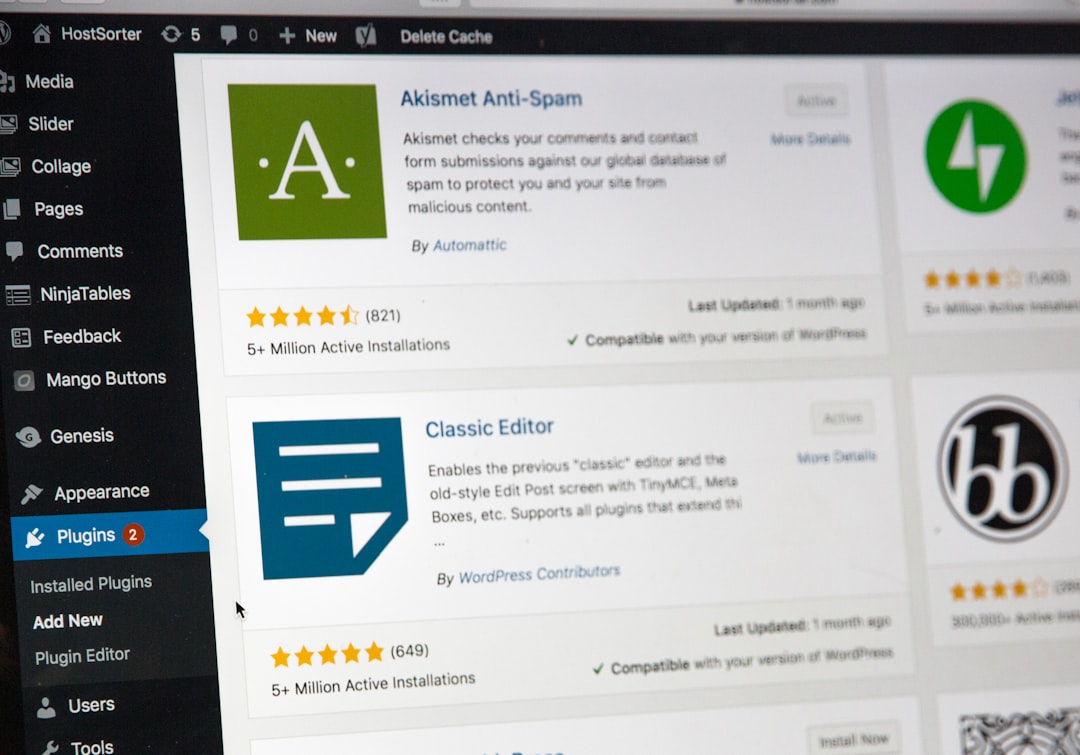
WordPress does not include advanced SEO controls by default. To add and manage keyword-related information more easily, install a trusted SEO plugin. Popular options include Yoast SEO, Rank Math, and All in One SEO. These plugins help you edit titles, meta descriptions, social previews, and other SEO elements without changing code.
To install an SEO plugin:
- Log in to your WordPress admin dashboard.
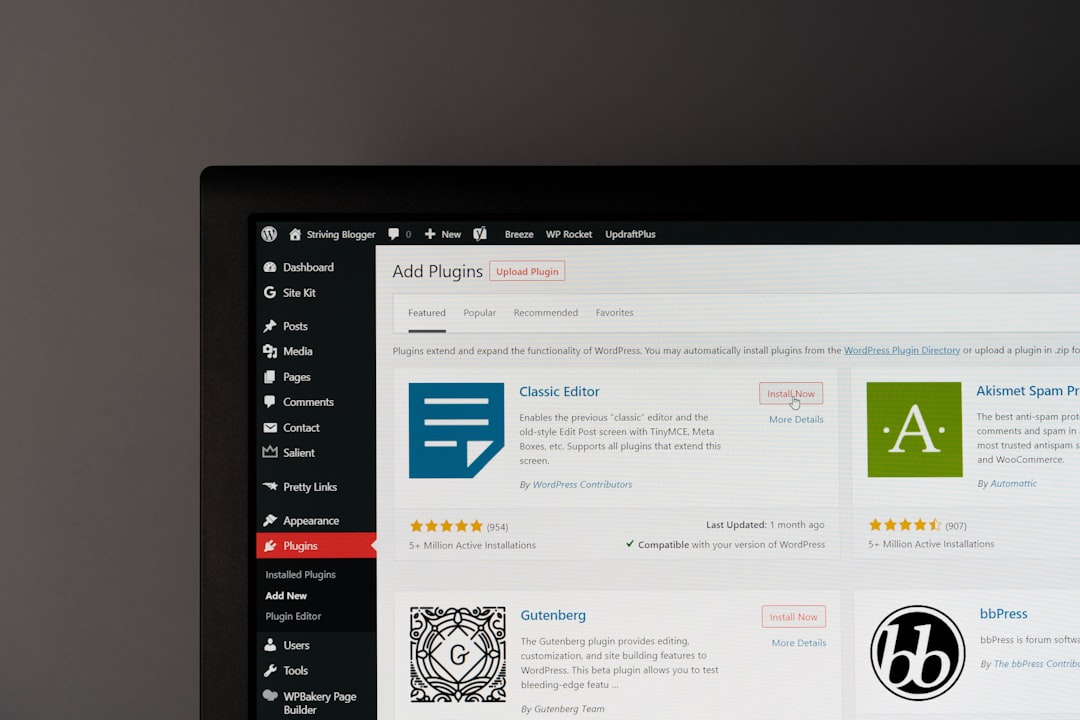
- Go to Plugins > Add New.
- Search for an SEO plugin, such as Yoast SEO or Rank Math.
- Click Install Now.
- Click Activate.
- Follow the setup wizard if the plugin provides one.
After activation, you will usually see SEO options when editing posts and pages. These fields are where you can add focus keywords, SEO titles, and meta descriptions.
Step 3: Add the Keyword to the Page or Post Title
The title is one of the most important places to include your keyword. It tells both readers and search engines what the page is about. In WordPress, the title field appears at the top of the post or page editor.
A strong title should be clear, specific, and natural. For example, if your keyword is add keywords in WordPress, a suitable title might be:
- How to Add Keywords in WordPress: Beginner SEO Guide
- Add Keywords in WordPress: Step-by-Step Instructions
Avoid forcing the keyword into an awkward sentence. A title written only for search engines can look untrustworthy to users. A good SEO title should still sound like something a real person would want to click.
Step 4: Add the Keyword to the URL Slug
The URL slug is the part of the web address that identifies the page. In WordPress, you can edit it below or near the title, depending on whether you are using the block editor or classic editor.
For example, if your page title is How to Add Keywords in WordPress, the URL might look like this:
example.com/add-keywords-in-wordpress
Keep URLs short, readable, and relevant. Remove unnecessary words when possible, but make sure the main keyword remains clear. Avoid changing URLs on existing published pages without setting up redirects, because doing so can cause broken links and loss of traffic.
Step 5: Use the Keyword in the Introduction
Include your primary keyword near the beginning of your content, preferably in the first paragraph. This helps establish the topic quickly. However, it should appear naturally. If the keyword does not fit smoothly, rewrite the sentence rather than forcing it.
For example:
Learning how to add keywords in WordPress can help beginners improve their website structure and make content easier for search engines to understand.
This type of sentence is clear and useful. It includes the keyword, but it does not feel repetitive or artificial.

Step 6: Add Keywords to Headings
Headings organize your content for readers and search engines. In WordPress, headings are usually formatted as H2, H3, and H4 blocks. Your main page title is normally the H1, so the body of your article should use H2s for major sections and H3s for subsections.
You do not need to put the exact keyword in every heading. In fact, doing so may look unnatural. Instead, use the primary keyword in one or two important headings and use related phrases elsewhere.
For example, related headings might include:
- Where to Place Keywords in WordPress
- How to Write SEO Titles and Meta Descriptions
- Common Keyword Mistakes Beginners Should Avoid
This approach keeps the article readable while still reinforcing the topic.
Step 7: Use Keywords Naturally in the Main Content
Your content should answer the reader’s question thoroughly. Keywords should appear naturally throughout the article, but there is no exact number of times you must repeat them. Search engines are now sophisticated enough to understand related terms, synonyms, and context.
For example, if your primary keyword is WordPress SEO keywords, you might also use phrases such as SEO terms, search phrases, keyword placement, and optimizing WordPress content. This makes the content more natural and comprehensive.
Avoid keyword stuffing, which means repeating a keyword excessively in an attempt to manipulate rankings. Keyword stuffing can harm readability and may reduce trust. A serious, professional website should prioritize clarity, accuracy, and usefulness.
Step 8: Add Keywords to Image Alt Text
Images can support SEO when they are properly described. In WordPress, each image has an Alt Text field in the Media Library. Alt text helps search engines understand the image and improves accessibility for users who rely on screen readers.
To add alt text:
- Open the WordPress editor for your page or post.
- Click the image you want to edit.
- Find the Alt Text field in the block settings or Media Library.
- Write a short, accurate description of the image.
- Include a keyword only if it genuinely describes the image.
For example, if the image shows the WordPress SEO plugin settings, an appropriate alt text could be: WordPress SEO plugin keyword settings screen. Do not add unrelated keywords to image descriptions. Alt text should first serve accessibility and accuracy.
Step 9: Add a Keyword to the Meta Description
The meta description is the short summary that may appear under your page title in search results. It is not a direct ranking factor in the same way that content relevance is, but it can influence whether people click your result.
Most SEO plugins provide a meta description field below the WordPress editor. Write a concise summary of the page and include your primary keyword if it fits naturally.
A good meta description might be:
Learn how to add keywords in WordPress using titles, URLs, headings, image alt text, and SEO plugin settings. A beginner-friendly step-by-step guide.
Keep it clear and honest. Do not promise something the article does not deliver. Misleading descriptions may increase bounce rates and reduce user trust.
Step 10: Add the Focus Keyword in Your SEO Plugin
Many SEO plugins include a focus keyword or focus keyphrase field. This field does not directly add a ranking signal to Google. Instead, it helps the plugin analyze your content and provide recommendations.
To use it:
- Open the page or post you want to optimize.
- Scroll to the SEO plugin panel.
- Find the field labeled Focus Keyphrase, Focus Keyword, or similar.
- Enter your primary keyword.
- Review the plugin’s suggestions.
- Make improvements where they are sensible and relevant.
Do not follow plugin recommendations blindly. SEO tools are helpful, but they are not perfect. If a suggestion makes your writing sound unnatural, prioritize the reader. Search engines reward content that satisfies users, not content that merely achieves a green score in a plugin.
Step 11: Use Categories and Tags Carefully
WordPress categories and tags can help organize your content, but they are often misunderstood. Categories are broad groupings, while tags describe more specific topics. They can support site structure, but they should not be used as a place to dump every possible keyword.
For example, a blog about digital marketing might use categories such as SEO, Email Marketing, and Content Strategy. Tags might include more specific topics such as keyword research or technical SEO.
Keep categories and tags organized. Too many thin tag archive pages can create low-value pages on your site. Use them only when they genuinely help visitors navigate your content.
Step 12: Review the Page Before Publishing
Before publishing, review the page carefully. Make sure the keyword appears in the most important places, but also make sure the article reads naturally. A trustworthy website does not sacrifice accuracy or readability for keyword placement.
Use this simple checklist:
- The primary keyword appears in the title.
- The URL slug is short and relevant.
- The introduction clearly states the topic.
- Headings are organized and helpful.
- The content answers the searcher’s question.
- Images have accurate alt text.
- The meta description is clear and compelling.
- The page does not repeat the keyword excessively.
- Internal links point to relevant pages on your site.
- The article is proofread before publication.
Common Mistakes to Avoid
Beginners often assume that more keywords automatically mean better rankings. This is incorrect. Search engines are designed to identify helpful content, not pages that repeat the same phrase over and over.
Avoid these common mistakes:
- Keyword stuffing: Repeating the same phrase unnaturally throughout the page.
- Using irrelevant keywords: Targeting popular terms that do not match your content.
- Ignoring search intent: Writing content that does not answer what users actually want.
- Overusing tags: Creating many unnecessary WordPress tag pages.
- Neglecting updates: Leaving old content unchanged when information becomes outdated.
Final Thoughts
Adding keywords in WordPress is not difficult, but it should be done with care. Start with a relevant keyword, place it in important areas, and use an SEO plugin to guide your work. At the same time, remember that keywords are only one part of SEO. Your content must be accurate, useful, well organized, and written for people first.
If you follow the steps in this guide, you will have a solid foundation for optimizing WordPress pages and posts. Over time, review your results, improve older content, and continue learning how your audience searches. Serious SEO is not about shortcuts; it is about consistently publishing valuable content that search engines and readers can trust.