Cloudflare is the safest first pick for most PS5 players, while NextDNS and Control D are better if you want filtering, profiles, and more control. DNS will not magically turn a 70 ms match into a 20 ms match, but it can make store pages, party features, downloads, and matchmaking lookups feel cleaner. Cloudflare’s public resolver uses 1.1.1.1 and 1.0.0.1, and the company says it does not sell personal data [source: Cloudflare].
TLDR
Use Cloudflare first if you want a free, fast DNS setup with no account. Try NextDNS if you want to block trackers, ads, and shady domains across your console network. For example, if your ISP DNS takes around 80 ms to answer and Cloudflare answers in 15 ms, menus that call web services may feel faster, though your actual match ping may not change. Control D is great for families or players who want custom rules, but it takes a few extra minutes to set up.
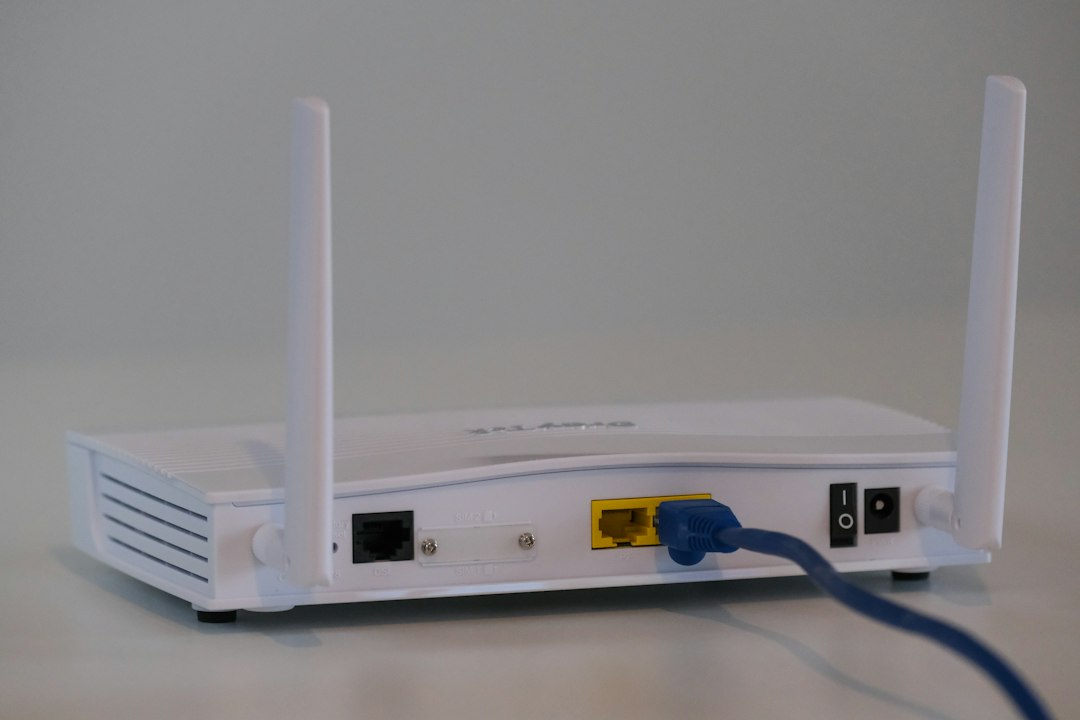
What DNS Actually Does on PS5
DNS is the phonebook your PS5 uses to find services like PlayStation Network, game servers, update servers, and store content. A good DNS service can answer those requests faster and more reliably than your ISP.
The annoying part? A better DNS does not control the route your game traffic takes after the match starts. So yes, it can help the “getting there” part. No, it will not fix bad Wi Fi, a weak ISP route, or overloaded game servers.
1. Cloudflare DNS: Best Simple Choice
Primary DNS: 1.1.1.1
Secondary DNS: 1.0.0.1
Cloudflare is the easiest recommendation for PS5. It is fast, free, and simple. You do not need an account. You do not need a dashboard. Just enter the addresses and move on.
- Best for: Players who want speed without tinkering.
- Good: Fast response times, strong privacy stance, very easy setup.
- Bad: No custom blocking or gaming specific controls.
If you only want one answer, pick Cloudflare. It is boring in the best way.
2. NextDNS: Best for Custom Filtering
Primary DNS: Depends on your NextDNS profile
Secondary DNS: Depends on your NextDNS profile
NextDNS is for players who like control. You can block ads, trackers, malware domains, adult content, gambling sites, and more. You can also see analytics, which is useful if you wonder what your PS5 is contacting in the background.
It drives me crazy that some smart TV and console apps call so many outside domains just to load a home screen. NextDNS makes that visible. On a shared home network, that visibility can be useful.
- Best for: Privacy focused users and families.
- Good: Detailed logs, blocklists, parental controls, profiles.
- Bad: Setup takes longer than basic DNS.
For gaming, avoid going wild with blocklists. Too many blocked domains can break login pages, game stores, or voice chat.
3. Control D: Best for Rules and Location Control
Primary DNS: Depends on your Control D endpoint
Secondary DNS: Depends on your Control D endpoint
Control D feels like DNS for people who want buttons, switches, and rules. You can block categories, reroute some services, and create different profiles. It is more advanced than Cloudflare and often cleaner to manage than old school router filters.
- Best for: Advanced users, parents, and people with many devices.
- Good: Strong customization, service controls, modern interface.
- Bad: Overkill if you only want faster DNS.
Use it if you want your PS5 to sit inside a controlled home setup. Skip it if you hate dashboards.
4. Google Public DNS: Best Reliable Backup
Primary DNS: 8.8.8.8
Secondary DNS: 8.8.4.4
Google Public DNS is widely supported and easy to remember. It is not the most exciting option, but it is stable. If your ISP DNS is flaky, Google is a strong fallback.
- Best for: Players who want a dependable backup.
- Good: Very reliable, easy addresses, huge infrastructure.
- Bad: Not ideal for users who want tighter privacy tools.
5. Quad9: Best Security First DNS
Primary DNS: 9.9.9.9
Secondary DNS: 149.112.112.112
Quad9 focuses on blocking known malicious domains. That makes it a good pick for households with many devices, not just a PS5. It can help stop access to dangerous domains before a device connects.
- Best for: Security minded players.
- Good: Malware blocking, free use, no messy setup.
- Bad: Fewer fun controls than NextDNS or Control D.
6. OpenDNS: Best Classic Family Option
Primary DNS: 208.67.222.222
Secondary DNS: 208.67.220.220
OpenDNS has been around for years. It is still useful for families because it offers filtering and basic protection. It is not as sleek as newer tools, but it works.
- Best for: Simple family filtering.
- Good: Mature service, category blocking, easy router setup.
- Bad: Interface can feel dated.
How to Change DNS on PS5
- Go to Settings.
- Open Network.
- Select Settings, then Set Up Internet Connection.
- Choose your Wi Fi or LAN connection.
- Pick Advanced Settings.
- Set DNS Settings to Manual.
- Enter the primary and secondary DNS addresses.
- Save, then run Test Internet Connection.
Which One Should You Pick?
Start with Cloudflare. Test downloads, party chat, the PlayStation Store, and two or three online matches. If nothing breaks and menus feel quicker, keep it.
Choose NextDNS if you want analytics and filtering. Choose Control D if you want deeper rules. Pick Quad9 for security, Google for reliability, and OpenDNS for family controls.
The best DNS for PS5 is the one that stays fast, stable, and invisible. If you stop thinking about it after setup, that is usually a win.