
Transparent images are essential for professional-looking websites, product listings, presentations, social media graphics, app interfaces, and digital ads. A clean PNG with a transparent background can make a logo, product photo, portrait, icon, or graphic element easier to reuse across different layouts without awkward white boxes or mismatched backgrounds.
TLDR: The best free online tools for creating transparent images include Photopea, Adobe Express, Canva, remove.bg, Pixlr, Erase.bg, Kapwing, and LunaPic. For precise editing, Photopea and Pixlr are strong choices; for fast background removal, remove.bg, Adobe Express, and Erase.bg are more convenient. Always export as PNG if you need true transparency, and review the edges carefully before using the image professionally.
What Makes a Good Transparent Image Tool?
Not every “background remover” is equally useful. Some tools are excellent for quick previews but limit downloads, reduce image quality, or require sign-up before exporting. Others provide more manual control but require a little more time and skill. A reliable transparent image tool should offer several important features:
- PNG export: Transparency is usually preserved best in PNG format. JPG does not support transparency.
- Clean edge handling: Hair, fur, glass, shadows, and fabric can be difficult for automatic tools.
- Manual refinement: A brush, eraser, selection tool, or masking option is useful for correcting mistakes.
- Reasonable free access: The tool should allow meaningful free use, even if premium features exist.
- Privacy awareness: For business, legal, or personal images, check whether uploaded files are stored or used for training.
Below are the top free online tools worth considering, along with their practical strengths and limitations.
1. Photopea
Photopea is one of the most capable free online image editors available. It runs in a browser and looks similar to advanced desktop editing software, making it suitable for users who need more than a one-click background remover.
Photopea supports layers, masks, selections, erasers, and common professional formats such as PSD, PNG, JPG, SVG, and more. If you need to create a transparent logo, remove a background manually, clean up product images, or prepare a layered design, Photopea is a serious option.
Best for: detailed manual editing, logos, product photos, and complex transparency work.
Key advantages:
- No software installation is required.
- Supports layer-based editing and alpha transparency.
- Can open and export professional file types.
- Useful for both beginners and experienced designers.
Limitations: Photopea has a learning curve. If you only want to remove a background in a few seconds, an automatic tool may be faster. However, if quality matters, Photopea is often worth the extra time.
2. Adobe Express
Adobe Express offers a free background remover that is simple, polished, and accessible through a web browser. It is especially useful for creators who need quick transparent PNGs for social media, presentations, flyers, and simple branding materials.
The tool works by uploading an image and letting Adobe automatically detect the subject. In many common situations, such as portraits or objects with clear contrast, the results are clean and fast. After removing the background, users can download the image or continue editing inside Adobe Express.
Best for: quick background removal, social media graphics, profile photos, and marketing visuals.
Key advantages:
- Easy to use and beginner-friendly.
- Professional interface from a well-known software company.
- Good automatic subject detection for common images.
- Useful templates and design features are available after background removal.
Limitations: Some features may require an account or paid plan. For very fine details, such as flyaway hair or transparent objects, manual correction may still be necessary.
3. Canva
Canva is widely used for online design, and it can be helpful for creating layouts that include transparent images. While some background removal features may depend on the plan or availability in your region, Canva remains useful for working with transparent PNGs, designing overlays, and exporting graphics for digital use.
Users can upload existing transparent images, place them on designs, combine them with text, and prepare assets for presentations, websites, or social media. Canva is strongest when transparency is part of a larger design workflow rather than a standalone editing task.
Best for: design layouts, marketing graphics, social posts, and presentations.
Key advantages:
- Very easy interface for non-designers.
- Large library of templates, icons, and design elements.
- Good for combining transparent images with text and backgrounds.
- Useful for teams and repeat design projects.
Limitations: Some advanced export and background removal options may not be included in the free version. Always verify that your final download preserves transparency before using it in a professional setting.
4. remove.bg
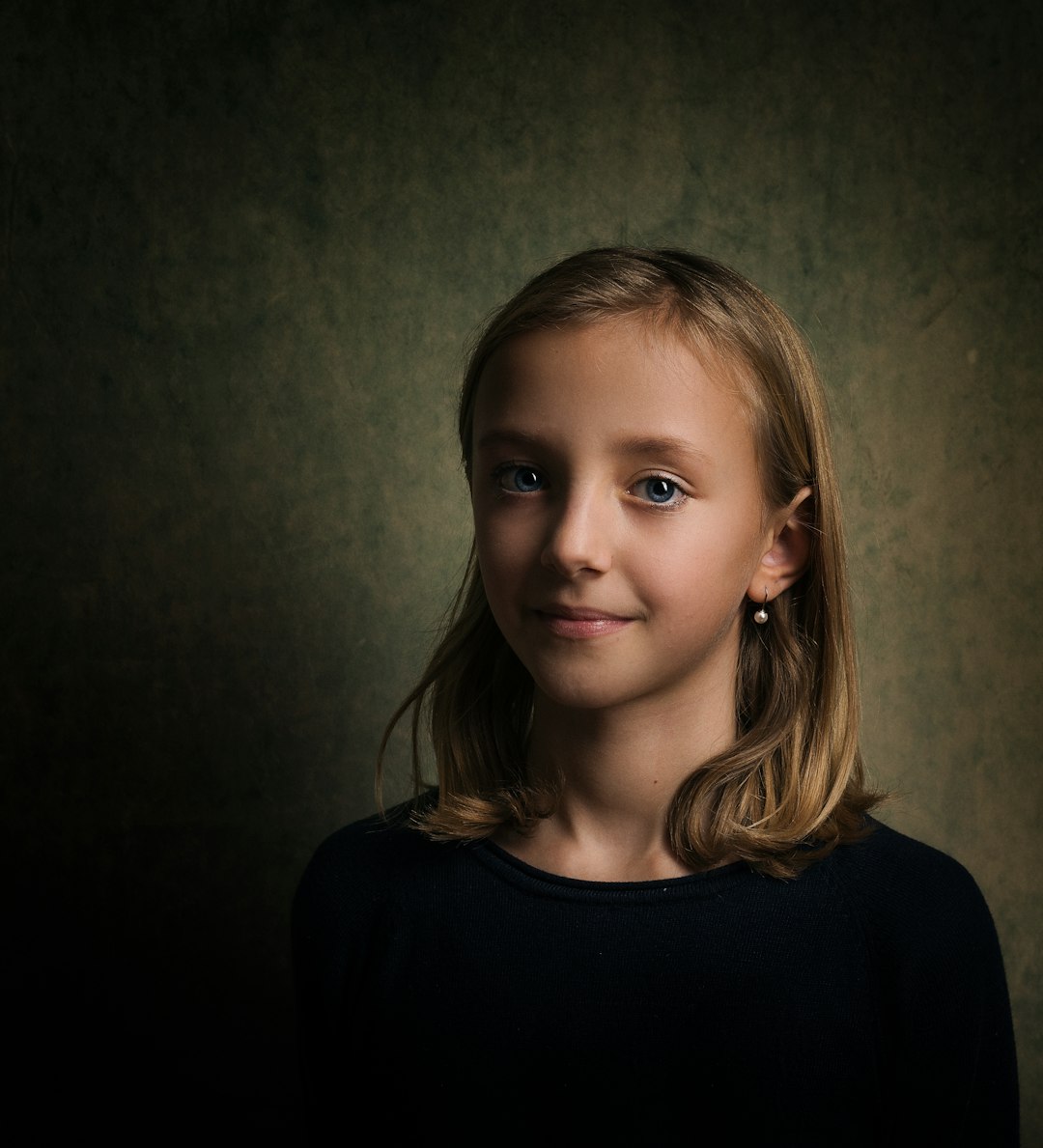
remove.bg is one of the best-known automatic background removal tools. Its main strength is speed. You upload an image, the tool identifies the subject, removes the background, and provides a transparent result within seconds.
This tool is particularly effective for portraits, product images, animals, and objects with a clear subject. It is popular among ecommerce sellers, content creators, and office users who need quick, practical results without learning editing software.
Best for: fast automatic background removal and simple transparent PNG downloads.
Key advantages:
- Extremely fast and simple.
- Good results on many common image types.
- No complex editing knowledge required.
- Useful for product photos, portraits, and profile images.
Limitations: The free version may limit output size or high-resolution downloads. If you need print-quality transparent images, review the free download restrictions carefully.
5. Pixlr
Pixlr offers web-based photo editing tools with both automatic and manual editing options. It is more approachable than a full professional editor but still gives users enough control to refine transparent images.
Pixlr is useful if you want to remove a background, erase unwanted sections, adjust image quality, add overlays, or create a transparent design from scratch. It is a good middle ground between one-click tools and more advanced editors like Photopea.
Best for: users who want both automation and hands-on editing.
Key advantages:
- Browser-based and relatively easy to learn.
- Includes background removal and editing features.
- Suitable for quick graphic creation and cleanup.
- Works well for social media, web graphics, and simple product images.
Limitations: Some features may be restricted or ad-supported in the free version. More complex edits may still require patience and manual cleanup.
6. Erase.bg
Erase.bg is another straightforward online background remover. It is designed to create transparent-background images quickly, with minimal user effort. It can work well for ecommerce product images, personal photos, logos, and general web graphics.
The process is simple: upload an image, wait for the automatic removal, and download the result. For users who do not want a full editing interface, this simplicity is an advantage.
Best for: simple automatic background removal with quick transparent PNG output.
Key advantages:
- Clean and simple workflow.
- Good for users who need results without editing experience.
- Works directly in the browser.
- Suitable for common product and portrait images.
Limitations: Like most automatic tools, it may struggle with complex backgrounds, very low-resolution images, or subjects with fine edge details. Check download quality before relying on it for client or commercial work.
7. Kapwing
Kapwing is a web-based creative platform that supports image and video editing. For transparent images, it can be useful when you want to remove backgrounds, create overlays, or prepare assets for video thumbnails, memes, social posts, and online campaigns.
Kapwing is especially helpful for creators who work across both images and video. A transparent PNG can be placed into a video, used as a sticker, or combined with text and branding elements.
Best for: social content, video overlays, thumbnails, and creator workflows.
Key advantages:
- Good for image and video projects in one place.
- Modern interface with collaborative features.
- Useful for transparent overlays and branded content.
- Works online without installing software.
Limitations: Free exports may include restrictions depending on current platform rules. For high-volume work, review account requirements and export limits.
8. LunaPic
LunaPic has an older interface, but it remains a surprisingly useful free online image editor. It offers transparency tools, background removal options, color replacement, and simple effects. It is not as visually modern as some competitors, but it can handle basic transparency tasks without requiring a paid subscription.
LunaPic is a practical choice for users who need quick transparent backgrounds, simple cutouts, or color-to-transparent conversions. For example, if you have a logo on a plain white background, LunaPic can often make the white area transparent with minimal effort.
Best for: simple transparency edits, color-to-transparent conversion, and lightweight online editing.
Key advantages:
- Free and browser-based.
- Useful for simple transparent background tasks.
- Can make a selected color transparent.
- No heavy design workflow required.
Limitations: The interface may feel outdated, and it is not ideal for complex professional retouching. Still, for basic transparent PNG work, it can be dependable.
How to Get Better Results from Free Transparency Tools
Even the best online tools produce better results when the original image is prepared properly. Start with the highest-resolution image you can reasonably use. Avoid blurry photos, heavy shadows, and subjects that blend into the background. Strong contrast between the subject and background usually leads to better automatic cutouts.
If the first result is imperfect, do not assume the tool has failed. Try another service, or use an editor such as Photopea or Pixlr to refine the edges manually. Pay special attention to hair, fingers, product outlines, glass, smoke, jewelry, and soft shadows. These details often reveal whether a transparent image looks professional or rushed.
When exporting, choose PNG for transparent images. If you export as JPG, the transparent areas will usually turn white or another solid color. For logos and icons, consider SVG if the design is vector-based and the tool supports it. SVG can remain sharp at any size, but PNG is more widely used for photos and general graphics.
Which Tool Should You Choose?
The right tool depends on your purpose. If you need maximum control, choose Photopea. If you need fast automatic removal, try remove.bg, Adobe Express, or Erase.bg. If you are designing social media posts or marketing graphics, Canva and Kapwing may fit better into your workflow. If you want a lightweight editor for basic tasks, LunaPic is still worth considering.
For professional use, it is often wise to combine tools. For example, you might remove the background with remove.bg, then open the result in Photopea to clean the edges and export a final PNG. This approach gives you speed without sacrificing quality.
Final Thoughts
Free online tools have made transparent image creation accessible to nearly everyone. Whether you are preparing ecommerce photos, profile pictures, logos, presentation graphics, or social media assets, there is likely a free browser-based tool that can handle the job.
The most important rule is simple: check the final image carefully before publishing it. Transparency errors, jagged edges, leftover background fragments, and low-resolution exports can make otherwise good designs look unprofessional. With the right tool and a careful review process, you can create clean, reusable transparent images without expensive software.