
In today’s competitive digital landscape, businesses that embrace local optimization gain a clear edge. One of the most powerful — and often underutilized — tools available to local businesses is Google My Business (GMB). Beyond maps and basic listings, GMB enables you to showcase your products and services directly where customers are searching. However, simply adding information isn’t enough. You need to craft entries that convert casual visitors into paying customers. This guide will walk you through every step of the way to make your offerings shine on your GMB profile.
TL;DR (Too Long; Didn’t Read)
Optimizing your Google My Business profile by adding services and products can significantly boost your local visibility and drive more foot traffic or inquiries. To truly convert, you should list items clearly, use engaging copy, and maintain consistency with your website and branding. Use high-quality visuals, proper categorization, and include keywords smartly. Following a step-by-step approach ensures nothing gets overlooked and increases your chances of standing out in local search results.
Step 1: Understand Why Products and Services Matter
Google rewards listings that provide value to users. When you add products and services to your GMB profile, you’re not only enriching your listing — you’re helping customers make decisions faster. Features like these enhance your profile by:
- Enabling more prominent visibility in local search packs
- Displaying key offerings without users needing to visit your website
- Driving more conversions by giving potential customers clear, actionable information upfront
If your competitors are just listing their business hours and address, you can pull ahead by offering more immediate value.
Step 2: Sign in and Navigate to the Right Business
Before adding products and services, make sure you have admin access to the GMB account associated with your business. Follow these steps:
- Go to business.google.com
- Select the business listing you want to manage
- From the left-hand menu, choose either “Services” or “Products” depending on what you’re adding
Make sure your business category supports product and service listings. For example, restaurants usually have menu options while retail stores will have full product listings enabled.
Step 3: Add Services That Inspire Action
The Services section is ideal for businesses in hospitality, home services, professional consultation, and wellness markets. Start by organizing your services into relevant categories.
Here’s how to optimize each service entry:
- Name: Use the official term people search for, like “Teeth Whitening” rather than “Bright Smile Session”
- Category: Fit the service under the most accurate overall offering (e.g., under “Dental Services”)
- Description: Provide a clear, concise, and benefit-oriented description. Include unique elements like pricing, duration, guarantees, or free consultations
- Keyword Optimization: Naturally include local and service-specific keywords like “emergency plumber in Miami”

You can group services for better UX (user experience). For example, a spa could have a “Massage Therapy” group with services like “Swedish Massage”, “Deep Tissue”, and “Hot Stone.” This keeps your listing tidy and easier for customers to browse.
Step 4: Showcase Your Product Catalog
Product listings are perfect for retail stores, boutiques, food vendors, and any business that sells tangible goods. Adding product listings not only makes your GMB profile more active but mimics an online storefront directly inside Google Search and Maps.
Tips for Adding Product Listings That Convert:
- High-Quality Images: Use simple, clean, and well-lit photos with neutral or brand-consistent backgrounds
- Clear Product Names: Use terms that people are searching for (e.g., “Organic Soy Candle” over “Peaceful Glow”)
- Pricing: Be transparent. If prices fluctuate, note “Starting at $25” to encourage action
- CTA (Call-to-Action): Use links like “Order Online,” “Learn More,” or “Call Now” depending on your funnel
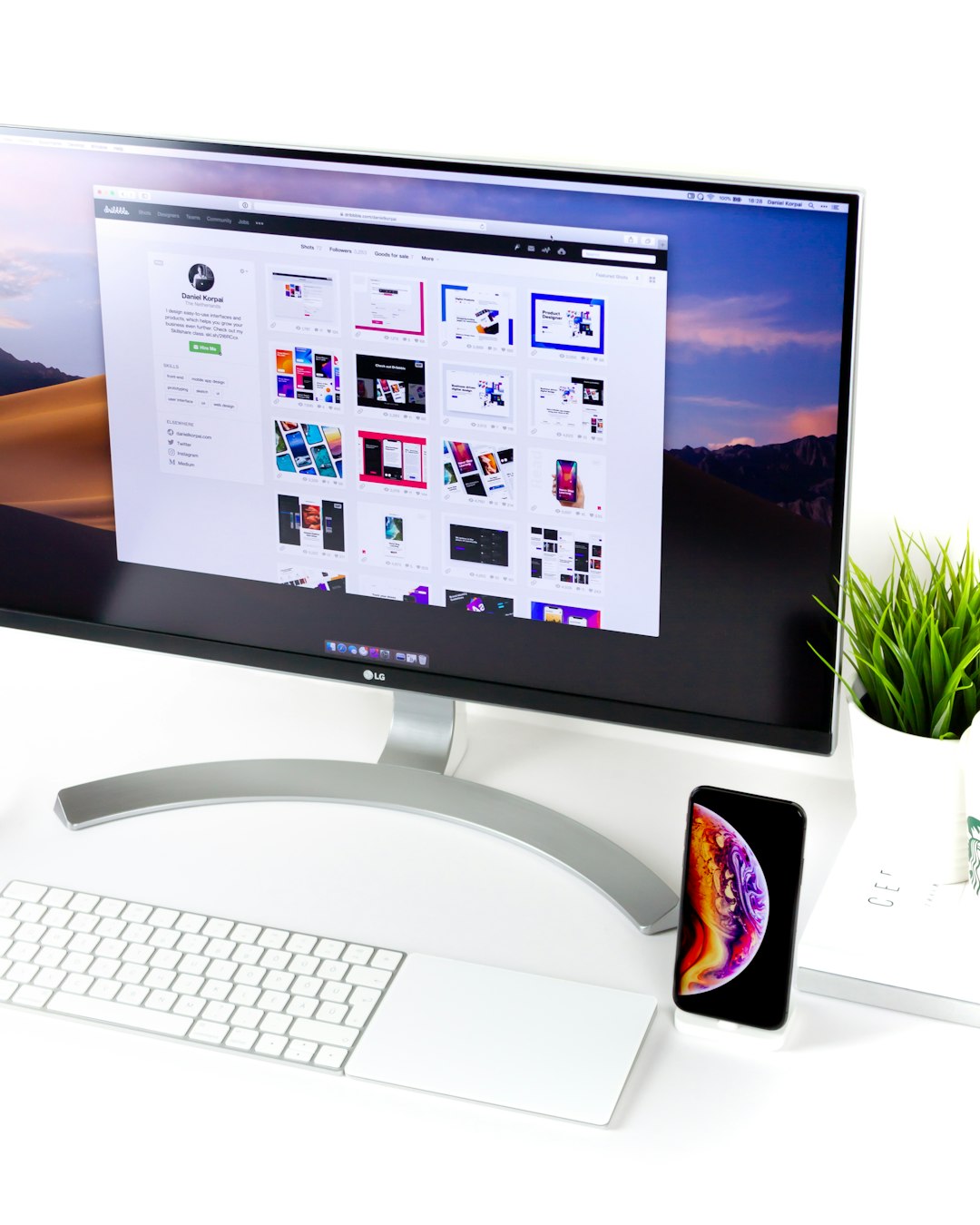
The Product Editor enables you to organize products into collections or highlight featured items. For seasonal promotions or best-sellers, consider creating a separate product section with urgency-focused descriptions like “Limited Stock” or “Summer Must-Have.”
Step 5: Keep Copy Clean, Conversational, and Conversion-Oriented
When writing descriptions for either products or services, avoid fluff and jargon. Speak your audience’s language. Think less like a marketer and more like someone answering a friend’s question about what your business offers.
For example:
- Don’t say: “Our proprietary, synergistic systems synergistically elevate nail care wellness.”
- Do say: “Enjoy a relaxing, 30-minute manicure that leaves your hands looking fresh and feeling great.”
Pro tip: Use tools like Google’s Keyword Planner or even simple Google search auto-suggestions to find words people are actually using. Then weave those into your product and service names/descriptions naturally.
Step 6: Add Calls to Action
Every product or service listing in GMB eventually leads to a CTA — either a call button, website link, or direction map. You can’t always change the CTA text on GMB, but you can set context in the descriptions to guide users more intentionally.
For example:
“Curious if this service is right for you? Call now for a free phone consultation!”
Additionally, make sure your business phone number is accurate, functional, and preferably enabled for click-to-call options.
Step 7: Monitor Performance and Make Updates
Once your services and products are live, monitor how they’re doing.
- Use GMB Insights: You’ll find basic engagement stats like clicks, views, and direction requests right under your GMB Dashboard
- Update Seasonally: Swap outdated items with fresh seasonal products or timely services
- Respond to Questions: If customers ask questions about your products/services via the Q&A section, take the opportunity to respond clearly and promptly
This ongoing maintenance shows both customers and Google’s algorithm that your business is active and engaged — a key factor in higher rankings and better local visibility.
Step 8: Sync With Your Other Channels
Consistency builds trust. Be sure the services and products listed on Google My Business match what’s on your website, social media, and third-party directories. Nothing frustrates users more than inconsistencies — especially in pricing and availability.
Quick Cross-Check List:
- Prices: Match GMB prices with menu pages or online shops
- Photos: Use similar or identical product images across listings for brand consistency
- Descriptions: Maintain a consistent tone so that your brand feels unified
Final Thoughts
Your Google My Business profile is more than just a phonebook listing — it’s your digital storefront. By effectively showcasing services and products on GMB, you not only increase your visibility on local search but also drive meaningful action from your audience. Whether you’re a boutique bakery, a tech repair shop, or a personal trainer, a well-optimized GMB listing can funnel people directly into your sales pipeline.
Take the time to follow each of these steps, update regularly, and always think from your customer’s perspective. The result? Improved rankings, better engagement, and more conversions without spending a dime on advertising.