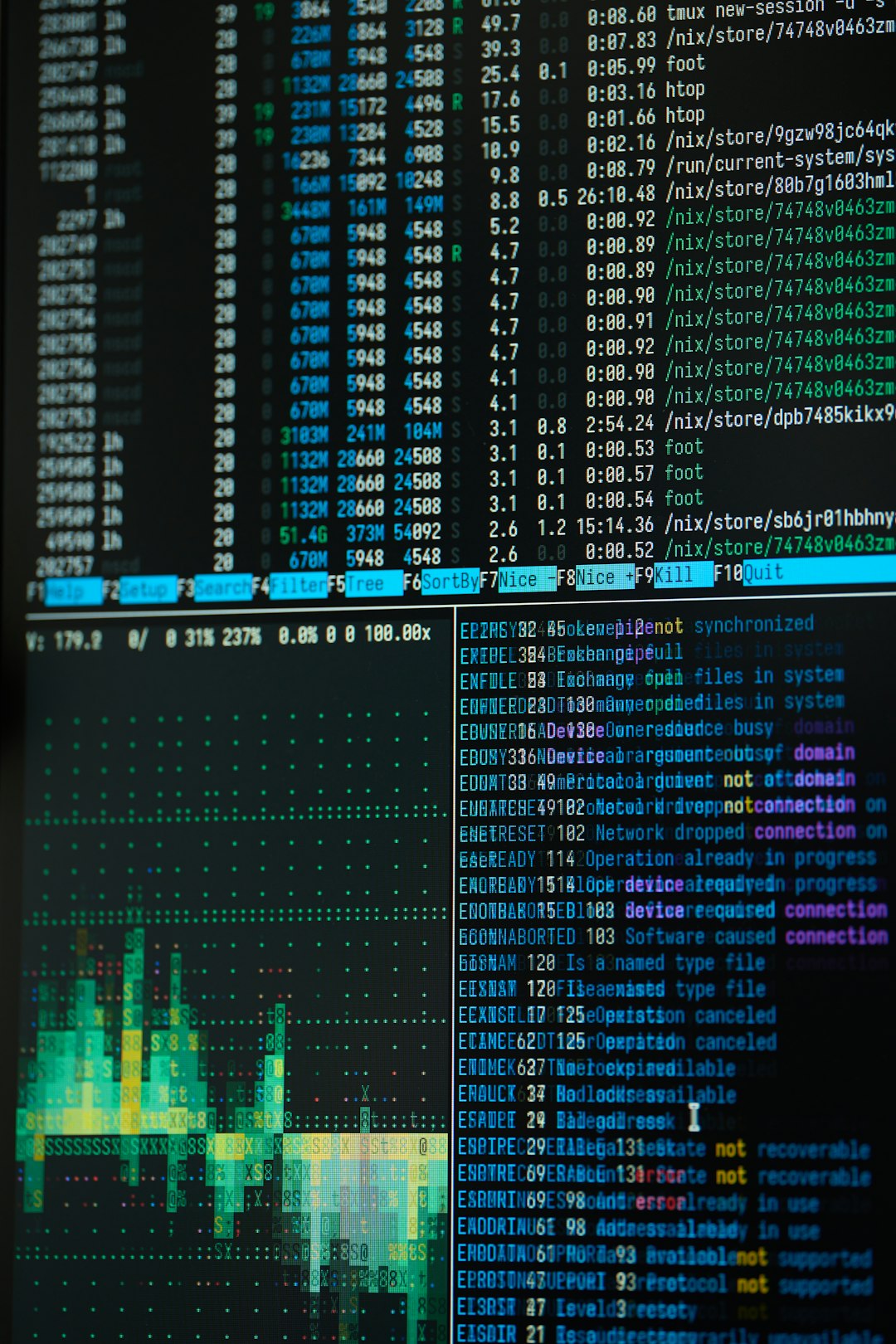
A clean install of Nobara Linux is supposed to deliver a smooth, gaming‑ready Fedora-based experience. Yet for some users, the first boot is followed by an unexpected issue: screen freezing, graphical stuttering, or pixelated artifacts across the desktop. These symptoms can make a fresh system feel unstable and unreliable. The good news is that in most cases, the problem is not hardware failure—it is configuration related and fixable.
TLDR: Freezing and pixelating after a clean Nobara install are usually caused by GPU driver issues, Wayland/X11 conflicts, or incorrect hardware acceleration settings. Updating the system, reinstalling or switching GPU drivers, and verifying compositing and kernel configurations resolve most cases. In more stubborn scenarios, disabling problematic kernel parameters or adjusting display settings fixes stability. With the right steps, Nobara can run smoothly even on demanding hardware.
This guide explains the most common causes of Nobara freezing and pixelation after installation and walks through practical, proven solutions.
Why Nobara May Freeze or Pixelate After Installation
Although Nobara is optimized for gaming and performance, it relies on several moving parts: kernel updates, Mesa or proprietary GPU drivers, and display server compatibility. Problems typically emerge from:
- GPU driver mismatch (especially NVIDIA)
- Wayland vs X11 conflicts
- Outdated kernel components
- Improper hardware acceleration settings
- Corrupted compositor configuration
Understanding which category your issue falls into dramatically speeds up troubleshooting.
Step 1: Update the Entire System First
Even if you’ve just installed Nobara, the ISO image may not include the latest patches. Kernel and Mesa improvements are released frequently, and graphical stability often improves after updates.
Open a terminal and run:
- sudo dnf update –refresh
After updates complete, reboot your system.
This simple step resolves a surprising number of freezing and pixelation issues because:
- New kernels fix GPU driver bugs
- Mesa updates improve AMD and Intel stability
- NVIDIA patches correct rendering glitches
If problems persist after a reboot, continue below.
Step 2: Verify Your GPU Driver Installation
Driver conflicts are the number one reason for post-install graphical instability.
For NVIDIA Users
NVIDIA GPUs require proprietary drivers for best performance. Nobara typically installs them automatically, but sometimes they do not load properly.
Check driver status:
- nvidia-smi
If you see driver information and your GPU listed, the driver is active. If not, reinstall it using Nobara’s driver manager or:
- sudo dnf reinstall akmod-nvidia
Then reboot.
If pixelation appears only under Wayland, switch to X11 from the login screen as a test. NVIDIA has historically been more stable with X11 in certain kernel builds.
For AMD Users
AMD drivers are built into the kernel, relying heavily on Mesa. Freezing may indicate:
- Outdated firmware
- Kernel regressions
- Improper Vulkan configuration
Ensure Mesa packages are updated:
- sudo dnf reinstall mesa*
If you recently upgraded hardware (e.g., RX 7000 series), confirm your kernel supports it properly.
Step 3: Switch Between Wayland and X11
Nobara typically defaults to Wayland, which offers modern rendering but may trigger compatibility issues with specific GPUs or apps.
To test:
- Log out
- Click the gear icon on the login screen
- Select GNOME on Xorg (X11)
- Log back in
If freezing disappears under X11, then Wayland is likely the source. Conversely, if you started on X11, try Wayland as a test.
Pixelation artifacts during window movement or video playback often indicate compositor interaction problems with the display server.
Step 4: Disable Problematic Kernel Parameters
During installation, certain kernel parameters may be added automatically—especially on NVIDIA systems.
Check your active kernel parameters:
- cat /proc/cmdline
If you see parameters like:
- nomodeset
- nvidia-drm.modeset=0
These can sometimes contribute to poor rendering or freezing.
To modify parameters:
- Edit GRUB configuration
- Remove unnecessary flags
- Regenerate GRUB config
Incorrect modeset settings frequently cause low-resolution pixelation or desktop tearing.
Step 5: Check Hardware Acceleration
If videos stutter while the desktop remains responsive—or if the entire screen freezes during GPU-intensive tasks—the issue may be hardware acceleration.
Install tools to test acceleration:
- glxinfo | grep “OpenGL renderer”
You should see your GPU listed. If it says “llvmpipe,” your system is rendering in software mode, which causes severe performance issues.
Software rendering often results from:
- Driver failing to load
- Secure Boot blocking driver modules
- Incorrect Mesa configuration
If Secure Boot is enabled in BIOS, disable it and reinstall proprietary GPU drivers when applicable.
Image not found in postmetaStep 6: Investigate Compositor and Desktop Effects
Pixel artifacts appearing when dragging windows or switching workspaces could indicate compositor malfunction.
On GNOME-based Nobara systems:
- Restart GNOME Shell: Alt + F2, type r, press Enter (X11 only)
If that resolves the problem temporarily, the shell may be crashing or struggling with extensions.
Disable extensions temporarily:
- Open Extensions app
- Toggle all off
- Restart session
Corrupted GNOME extensions frequently cause freezing after fresh installations where settings are restored from backups.
Step 7: Monitor System Logs
System logs provide tangible evidence of the actual source of freezes.
Immediately after a freeze and forced reboot, run:
- journalctl -b -1 -p 3
Look for:
- GPU hangs
- DRM errors
- Kernel panic messages
- Out-of-memory warnings
Repeated GPU reset errors (especially AMDGPU or NVRM errors) almost always point to driver instability rather than hardware failure.
Step 8: Test Memory and Hardware Stability
Though rarer, hardware instability can present as GPU pixelation.
Consider:
- Running a Memtest for RAM
- Checking GPU temperatures
- Verifying PSU stability
Overheating GPUs often cause temporary graphical corruption before freezing.
Use monitoring tools:
- sudo dnf install lm_sensors
- sensors
If temperatures spike unexpectedly, inspect airflow and cooling setup.
Step 9: Try a Different Kernel Version
Nobara includes custom kernels optimized for gaming. Occasionally, new kernels introduce regressions affecting specific GPUs.
At boot:
- Select Advanced options
- Boot into a previous kernel
If stability dramatically improves, you may be encountering a kernel-specific issue. In that case:
- Remain on stable kernel
- Monitor Nobara updates for fixes
When to Reinstall — and When Not To
Many users reinstall immediately after encountering freezing. In most cases, this is unnecessary.
Reinstallation only helps if:
- The ISO download was corrupted
- Driver installation failed completely
- Partitioning caused filesystem issues
Otherwise, freezing is almost always solvable through driver and configuration adjustments.
Stable Configuration Checklist
If your system is still unstable, confirm this checklist:
- System fully updated
- Correct GPU driver loaded
- No software rendering (llvmpipe)
- Secure Boot disabled (if using proprietary drivers)
- Tested both Wayland and X11
- Checked logs for GPU errors
- Tried alternate kernel
In nearly every real-world case reported by Nobara users, one of the above resolves the issue.
Final Thoughts
Freezing and pixelation after a clean Nobara install can feel discouraging—especially when you expect a polished experience immediately. However, these issues are rarely catastrophic. They usually stem from GPU driver mismatches, display server conflicts, or minor configuration problems introduced during boot or installation.
By methodically updating your system, verifying drivers, testing display servers, and reviewing logs, you can pinpoint the cause quickly and restore stability. Nobara remains one of the most performance-oriented Fedora-based distributions, and once properly configured, it delivers excellent gaming and desktop reliability.
Approach the problem systematically. Avoid unnecessary reinstalls. Focus on drivers and display configuration first. In most cases, a stable and smooth Nobara setup is only a few commands away.