
Fonts are a quiet but powerful part of any PowerPoint presentation. They shape tone, support readability, and help a deck feel polished rather than improvised. But the moment a presentation moves from your computer to someone else’s—especially between Windows, macOS, and web-based viewers—fonts can change, shift, or disappear entirely. Embedding fonts is one way to protect your design, but doing it well requires a little strategy.
TLDR: Embedding fonts in PowerPoint helps preserve your presentation’s appearance when it is opened on another device. The most reliable method is usually through PowerPoint for Windows, using the font embedding option in the Save settings. However, not all fonts allow embedding, and cross-platform compatibility still depends on font licensing, operating systems, and PowerPoint versions. For important presentations, combine embedded fonts with safe font choices, testing, and backup formats like PDF.
Why Font Embedding Matters
When PowerPoint opens a file, it looks for the fonts used in that presentation. If those fonts are not installed on the device, PowerPoint substitutes something similar—or sometimes not similar at all. A sleek condensed title font might become Arial, a carefully aligned chart label might wrap onto two lines, and a balanced slide layout can suddenly look messy.
This is especially common when presentations are shared with clients, sent to conference organizers, opened on office computers, or presented from a borrowed laptop. Font embedding stores font data inside the PowerPoint file, allowing the presentation to display more consistently even if the font is not installed locally.

How to Embed Fonts in PowerPoint on Windows
The most straightforward way to embed fonts is in PowerPoint for Windows. The process is simple, but the choices matter.
- Open your PowerPoint presentation.
- Click File.
- Select Options.
- Choose Save from the left-hand menu.
- Under Preserve fidelity when sharing this presentation, check Embed fonts in the file.
- Select one of the two embedding options:
- Embed only the characters used in the presentation: creates a smaller file, best for final presentations that will not be edited.
- Embed all characters: creates a larger file, best if someone else may need to edit the deck.
- Click OK, then save the file.
If your deck is finished and only needs to be presented, embedding only the characters used is usually enough. If collaborators may add text, change headings, or translate slides, embedding all characters is safer.
What Mac Users Should Know
PowerPoint on macOS has historically offered less control over font embedding than PowerPoint on Windows. Some versions can display or preserve embedded fonts, but the ability to create fully embedded font files may vary depending on the version, the font, and the environment. For the most reliable embedding workflow, use PowerPoint for Windows when possible.
If you work primarily on a Mac, you still have several good options. You can choose fonts that are already common across platforms, use cloud-safe fonts available in Microsoft 365, or send the deck to a Windows machine for final embedding. You can also export a PDF version as a backup for distribution or presentation when editing is not required.
Not Every Font Can Be Embedded
One of the most overlooked issues is font licensing. Fonts contain embedding permissions that tell software what is allowed. PowerPoint follows these permissions, so even if a font looks perfect in your deck, it may not be embeddable.
Common font permission types include:
- Installable embedding: The most flexible option. The font can usually be embedded and installed temporarily by the receiving system.
- Editable embedding: Others can view and edit the document using the embedded font.
- Print and preview embedding: The font can be displayed and printed, but editing may be limited.
- Restricted license embedding: The font cannot be embedded.
If PowerPoint reports that a font cannot be embedded, the issue is usually licensing rather than a technical bug. In that case, choose a different font, purchase an appropriate license, or use a backup method such as converting key text to images or exporting to PDF.
Choosing Fonts for Cross-Platform Compatibility
Embedding helps, but it should not be your only defense. The most reliable presentations begin with smart font selection. Choose fonts that are widely available, professionally designed, and readable at presentation distance.
Good cross-platform choices often include standard system fonts such as Arial, Calibri, Georgia, Verdana, and Times New Roman. Microsoft 365 cloud fonts can also be useful, provided the audience is likely to open the presentation in a compatible Microsoft environment.
Be cautious with decorative fonts. They may look memorable in a title slide, but they often cause problems when embedded, substituted, or displayed on different screens. If you use a distinctive brand or display font, limit it to large headings and pair it with a safer font for body text.
Best Practices Before Sharing Your Deck
To maintain compatibility, think like a presenter and a technician. Before sending the file, test it outside your own setup.
- Save as PPTX: Use the modern PowerPoint format, not older PPT files.
- Test on another computer: Ideally, check both Windows and macOS if your audience may use both.
- Open in presentation mode: Some font or layout problems are easier to spot during slideshow playback.
- Inspect line breaks: Font substitutions often reveal themselves through awkward wrapping.
- Keep a PDF backup: A PDF preserves visual layout and is excellent for sharing or emergency presenting.
- Avoid last-minute font changes: Changing fonts after embedding can reintroduce compatibility issues.
For high-stakes presentations, bring multiple versions: the editable PowerPoint file, a PDF, and, if needed, a version that uses only common system fonts. This small precaution can save a keynote, sales pitch, or classroom lecture from an unexpected formatting disaster.
When to Convert Text Instead of Embedding Fonts
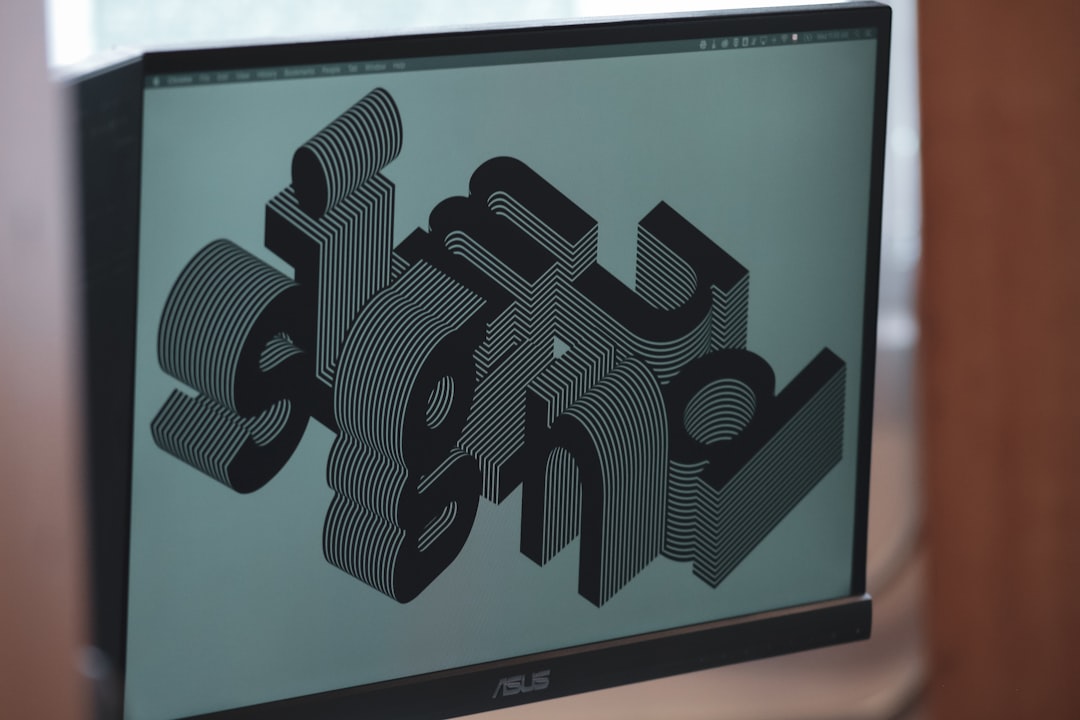
Sometimes embedding is not enough. If a slide contains a logo-style wordmark, a custom headline, or a typographic design that must never change, consider converting that text into a static visual element. You can save the text as an image or, in some workflows, convert it to shapes.
This approach is not ideal for body text because it makes editing harder and may affect accessibility. However, for a few critical design elements, it can be a practical safeguard. Use it selectively: preserve live, editable text where possible, and “lock down” only the elements that absolutely require exact appearance.
Common Problems and Fixes
If fonts still change after embedding, start by checking whether the font permits embedding. Next, confirm that the file was saved after the embedding option was selected. If the file size did not increase at all, the font may not have been embedded.
If collaborators cannot edit text properly, you may have chosen the “embed only characters used” option. Re-save the file using Embed all characters. If the presentation looks right on desktop PowerPoint but wrong in PowerPoint for the web, use the desktop app for final presenting or provide a PDF.
Final Thoughts
Embedding fonts in PowerPoint is not just a design detail—it is a reliability measure. It helps your slides travel better, protects your visual identity, and reduces the risk of awkward formatting surprises. Still, font embedding works best when combined with sensible font choices, licensing awareness, and real-world testing.
The safest workflow is simple: design with compatible fonts, embed them when allowed, test the deck on another platform, and keep a PDF backup ready. Do that, and your typography is far more likely to arrive looking exactly as intended.