It’s 2024, and you’re probably asking: “Can my MacBook Pro Touch Bar run Doom?” The answer is a glorious *yes*. Not only can it run Doom—it can run it right on the tiny strip known as the Touch Bar. That’s some serious geek power right there.
TL;DR
Your MacBook Pro’s Touch Bar can do more than volume control and emojis. With some clever hacks, you can actually play Doom on it! It’s more of a fun gimmick than a hardcore gaming experience, but it’s a cool party trick. Follow a few steps, and you’ll be blasting demons on your OLED strip in no time.
What Is This Doom-on-Touch-Bar Madness?
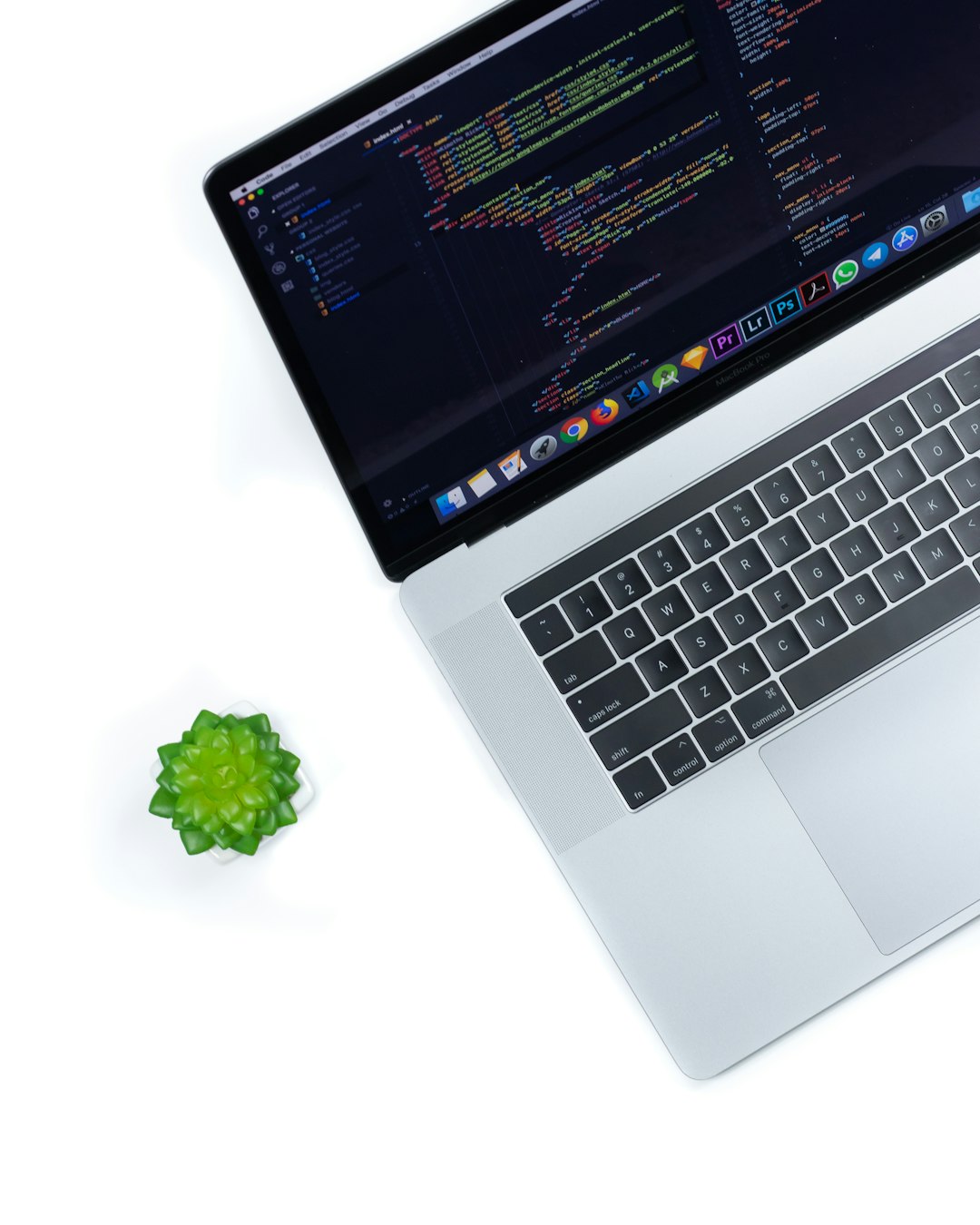
Let’s get one thing straight: the Touch Bar is tiny. It’s a 2170×60 OLED screen. Basically, the size of a candy bar. Trying to play a first-person shooter like Doom on there? It’s like trying to watch Jurassic Park through a keyhole. But that’s what makes it so cool.
This hack started as something of a dare by developers. With macOS being Unix-based, and Doom being licensed under open source, it all started coming together.
You won’t get buttery smooth 60 FPS gameplay. But you will get bragging rights.
What You Need
Let’s break this down simply. You’ll need:
- A MacBook Pro (2016 or later) with a Touch Bar
- macOS installed (Ventura, Monterey, even Big Sur works)
- Xcode Command Line Tools
- Homebrew (a package manager for macOS)
- A patched version of Doom made for the Touch Bar
Got all that? Good. Let’s dig in.
Step 1: Install Homebrew
This is your secret weapon for installing fun things on macOS. Open your Terminal app and type this command:
/bin/bash -c "$(curl -fsSL https://raw.githubusercontent.com/Homebrew/install/HEAD/install.sh)"If you already have Homebrew, you can skip this step.
Step 2: Install Git and Command Line Tools
Still in Terminal, type:
xcode-select --installThen install Git (if it’s not already there):
brew install gitGit will help you download the right Doom code from GitHub.
Step 3: Clone the Doom for Touch Bar Repo
Now the magic begins. There’s a special developer who modified Doom to run on the Touch Bar. You just need to grab his code:
git clone https://github.com/krzysztofzablocki/DoomTouchBar.gitWait for it to download completely.
Step 4: Build the App
Once that’s done, head into the new Doom directory:
cd DoomTouchBarThen, if the project includes a build script, run it like so:
./build.shIf it doesn’t, open the project in Xcode by double-clicking the .xcodeproj file and building it there.
How do you know if it worked? Doom should pop up—directly—in your Touch Bar.
What the Gameplay Is Like
Let’s be honest. It’s not going to win Game of the Year on that tiny screen. But it is surprisingly entertaining.
You move using combinations of the Touch Bar interface and keyboard inputs. Most versions limit you to basic movement and shooting. But yes, you can beat levels if you’re determined.
Side benefit: You’ll be admired by fellow nerds and potentially scare off nosy coworkers.
Image not found in postmetaWhy Would Anyone Do This?
Because it’s awesome, that’s why.
This is like fitting a train onto toy tracks. It’s not practical, but it’s art. It’s tech-prank poetry. It’s also a great way to impress people—or confuse your parents.
Other Games You Can Try on the Touch Bar
Feeling brave now? Doom’s just the beginning. Here are more fun experiments:
- Pong: The classic game of paddles—looks surprisingly cool in Touch Bar format.
- Tetris: Block-dropping becomes a zen-like experience at this scale.
- Snake: Hand-eye coordination reaches legendary levels.
Each of these has custom Touch Bar versions floating around GitHub. A little digging, a little building, and your Touch Bar turns into a portable arcade.
Warnings and Nerdy Realities
Alright, time for a bit of seriousness:
- You may need to allow permissions in System Preferences for things to run correctly.
- macOS gets picky with unsigned apps—use System Settings > Security & Privacy to allow banned apps.
- If you’re on the latest M-series chip, some projects may not yet be supported.
This isn’t always plug-and-play. But the adventure is part of the fun.
Other Fun Touch Bar Hacks
Got into the modding vibe? Try these Touch Bar tweaks:
- Custom Widgets: Add weather, jokes, or stock tickers.
- Shortcuts: Create custom buttons for Spotify, Zoom, or even your smart lights.
- Games: As you’ve learned, old classics like Doom make a neat appearance.
Eventually, you may forget the Touch Bar ever had a “mute” button.
Tips to Improve Doom Gameplay
Yes, you can optimize even a 60-pixel-tall Doom experience:
- Play in a dark room — better contrast on the OLED bar
- Use wired headphones — the sound adds immersion
- Don’t press too hard — just gentle taps will work better
- Adjust keyboard angle — make sure your wrists are comfy
Remember, you’re playing Doom on a strip the size of a gum wrapper. Respect.
Will This Harm My MacBook Pro?
Nope. Running Doom on the Touch Bar won’t damage your system. It’s just using it as a display. As long as you don’t break into root and start changing system files, you’re good.
Still, always know what you’re running. Avoid shady code online. That’s Hacker 101.
Final Thoughts
Playing Doom on the Touch Bar is one of those ridiculous, brilliant ideas only computer enthusiasts could love. It combines nostalgia, tech skills, and a bit of humor.
So, next time someone tells you Macs aren’t good for gaming, just raise your eyebrows and silently start Doom on your Touch Bar. Boom. Instant legend status.
Quick Recap
- Install Homebrew and Git
- Clone the DoomTouchBar repo from GitHub
- Build it with Xcode or a script
- Play Doom on your MacBook’s tiny screen like a true hacker
So go ahead, grab some coffee, plug in your charger, and relive 1993’s best shooter like it’s the future. Because it is.