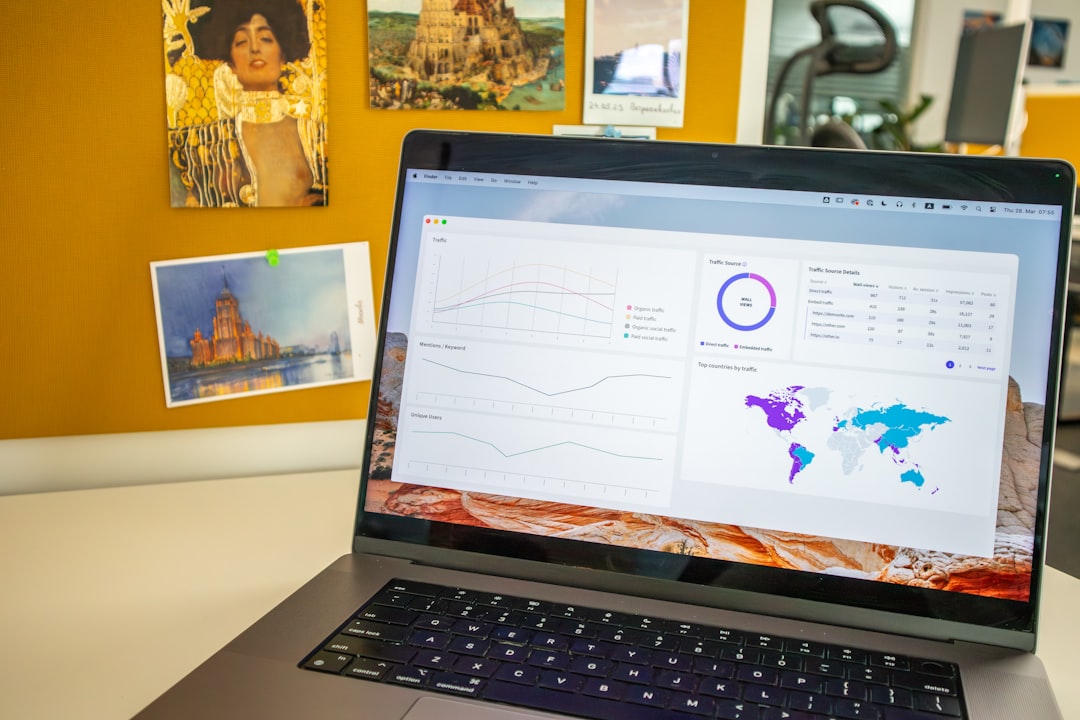
PowerPoint is already a trusty slide machine. But with the right add-ins, it becomes a turbocharged design buddy. You can build cleaner slides, save time, find visuals faster, and stop fighting with tiny alignment problems at 11:47 p.m.
TLDR: PowerPoint add-ins can help you design faster, present better, and avoid boring slides. The best ones help with icons, charts, timelines, polls, images, and layout cleanup. Start with one or two add-ins that fix your biggest pain point. Then build your perfect slide-making toolkit.
1. Power-user: The “I Need This Done Yesterday” Add-in
Power-user is like a giant productivity toolbox for PowerPoint. It gives you templates, icons, maps, diagrams, charts, and smart formatting tools. Basically, it helps you make slides look polished without spending half your day nudging boxes around.
This add-in is great for business decks, consulting slides, reports, and training presentations. It has a huge library of ready-made slide elements. You can grab a process diagram, a map, or an agenda slide in seconds.
Best for: people who make lots of professional presentations.
- Saves time with ready-made templates.
- Improves design with polished slide assets.
- Helps consistency across big decks.
If PowerPoint were a kitchen, Power-user would be the fancy blender, espresso machine, and air fryer all in one.

2. BrightSlide: The Layout Fixer Upper
BrightSlide is a favorite among PowerPoint pros. It helps with alignment, spacing, formatting, and repetitive tasks. It is especially useful when your slide looks “almost right,” but something still feels weird.
You can use it to split text, select similar objects, fix layouts, and manage complex slide elements. It also has tools for animation and shape editing. That means fewer clicks. Fewer clicks means more coffee time.
Best for: designers, agencies, and anyone who cares about neat slides.
- Aligns objects quickly and cleanly.
- Speeds up editing for large decks.
- Gives more control over slide design.
BrightSlide is not flashy. It is practical. Think of it as the friend who brings a label maker to a messy garage and leaves it looking like a showroom.
3. think-cell: The Chart Wizard
Charts can be painful. Really painful. You add data, adjust labels, move bars, resize legends, and suddenly your lunch break is gone. think-cell makes this much easier.
This popular add-in helps you create advanced business charts fast. It is especially good for waterfall charts, Gantt charts, Mekko charts, and agenda slides. These are the types of charts that often appear in strategy, finance, and management presentations.
Best for: data-heavy decks and business reports.
- Creates complex charts with less effort.
- Keeps charts editable inside PowerPoint.
- Makes data easier to understand.
If your audience needs numbers, trends, and insights, think-cell helps you avoid chart chaos. It turns “spreadsheet soup” into something people can actually read.
4. Office Timeline: The Timeline Hero
Need to show a project plan? A product roadmap? A campaign schedule? Say hello to Office Timeline.
This add-in helps you build timelines and Gantt charts directly in PowerPoint. You can create milestones, phases, dates, and task groups. It is much easier than drawing everything from scratch using lines and rectangles.
Best for: project managers, marketers, trainers, and team leads.
- Builds timelines quickly.
- Makes roadmaps easy to update.
- Looks professional with minimal design work.
Timelines are useful because they answer the big question: “What happens when?” Office Timeline answers that question without making your slide look like a subway map after a spaghetti accident.

5. The Noun Project: Icons Without the Treasure Hunt
Good icons make slides easier to scan. They add visual rhythm. They help people understand ideas faster. But finding matching icons can feel like digging through a junk drawer.
The Noun Project add-in gives you access to a huge library of icons right inside PowerPoint. You can search by keyword, choose an icon, and insert it into your slide. No browser tab jungle required.
Best for: visual storytelling and cleaner slide layouts.
- Offers many icons in different styles.
- Speeds up visual design during slide building.
- Helps simplify ideas with clear symbols.
Use icons for section markers, feature lists, process steps, and comparison slides. Just remember one rule: do not use 12 different icon styles in one deck. That is how slides start wearing mismatched socks.
6. Pexels: Better Images, Faster
Images can make a presentation feel modern and alive. But fake-looking stock photos can also make your audience quietly suffer. Pexels helps by giving you access to free, high-quality photos and videos.
With the Pexels add-in, you can search for visuals without leaving PowerPoint. Need a city skyline, a team meeting, a laptop, or a happy dog in sunglasses? You can find it fast.
Best for: title slides, mood slides, marketing decks, and storytelling.
- Finds free images quickly.
- Improves slide emotion and style.
- Reduces time spent searching online.
Use photos with care. One strong image is better than five random ones. Give the image room to breathe. Add simple text on top. Boom. Instant upgrade.
7. Mentimeter: Make Your Audience Wake Up
A presentation should not feel like a one-way lecture from a very confident robot. Mentimeter helps you make slides interactive. You can add polls, quizzes, word clouds, and live questions.
This is great for workshops, classes, team meetings, and events. Your audience can answer using their phones. Their responses appear live on the screen. It is simple and fun.
Best for: interactive presentations and audience engagement.
- Adds live polls to your presentation.
- Encourages participation from the audience.
- Makes meetings feel less sleepy.
Mentimeter is especially useful when you want feedback or quick opinions. It turns passive listeners into active humans again. Magic? No. But close.

How to Choose the Right PowerPoint Add-ins
You do not need every add-in on this list. That would be like wearing seven watches. Impressive, maybe. Useful, not really.
Pick add-ins based on your biggest slide problem:
- Need faster design? Try Power-user or BrightSlide.
- Need better charts? Try think-cell.
- Need project visuals? Try Office Timeline.
- Need icons? Try The Noun Project.
- Need free photos? Try Pexels.
- Need audience interaction? Try Mentimeter.
Also think about your budget, team needs, and how often you make presentations. Some add-ins are free. Some are paid. Some are best for heavy users. Test before you commit.
Final Thoughts
PowerPoint add-ins are small tools with big impact. They help you work faster. They make your slides cleaner. They can even make presenting more fun.
The goal is not to add more buttons to your toolbar just because they look fancy. The goal is to remove friction. Less hunting. Less formatting. Less “why is this box one pixel off?” energy.
Start with the add-in that solves your most annoying problem. Then build from there. Your future self, your audience, and your tired mouse hand will thank you.